
Wacom One Standard Pen
4.6Editor score
4,096 pressure levels
Tilt-response support
Battery-free operation
This Stylus for Photo Editing guide compares pressure sensitivity, palm rejection, compatibility, precision, and battery needs across ten popular models.
A stylus for photo editing should make precise corrections easier while remaining comfortable through detailed retouching, masking, selection, and brushwork. The right choice depends on the display, software, and whether you need pressure response, palm rejection, shortcut buttons, or simply a dependable tool for navigating menus and making annotations.
This guide compares ten styluses using the specifications and stated features provided for each product. It covers active, passive, active EMR, and capacitive designs across tablets, touchscreens, and supported Wacom hardware, with particular attention to pressure sensitivity, tip precision, device compatibility, charging, and workflow features.
Each entry explains who benefits most from that model, where its capabilities may fall short for serious editing, and how it fits into a broader photo-editing setup. Ratings and product details reflect the supplied listings, while prices can change, so compare current offers and verify device compatibility before purchasing.
4.6Editor score

4.3Editor score

4.7Editor score
The comparison below highlights the main differences in pen technology, pressure response, compatibility, and workflow support. It is designed to help photo editors identify whether they need a dedicated active stylus, a Wacom-compatible EMR pen, or a passive capacitive tool for lighter touch tasks.




The Lenovo Digital Pen 2 combines 4,096 levels of pressure sensitivity with a natural-feel elastomer tip, giving photo editors a more expressive option than a basic finger-replacement stylus. Its 4.3 rating reflects a well-rounded tool that emphasizes precise input, comfortable handling, and productivity features without adding complicated charging requirements.
We may earn a commission when you buy through this link, at no additional cost to you.
Pressure sensitivity is the central benefit for retouching. Light strokes can support subtle adjustments while firmer input can translate into stronger brush marks, depending on how the editing application maps pressure. The two quick-access side buttons can be customized for shortcuts, potentially reducing menu navigation or speeding up repeated actions during a detailed editing session.
Its frosted metal body weighs only 17.3 grams with the battery installed, which favors long working periods and precise hand movement. The elastomer tip is intended to reproduce a pen-on-paper sensation, while the stated Windows 10 and later AES 1.0 requirement provides a clearly defined compatibility target. The single AAAA battery also avoids routine USB charging interruptions.
The principal limitation is platform specificity. This is not a universal iPad, iPhone, or Android stylus, and a Windows device must support the required AES pen technology. Buyers should therefore confirm both hardware and application support before buying. For a compatible Windows laptop and an editor that recognizes pressure and shortcut buttons, it is the most complete productivity-oriented choice in this guide.
The combination of 4,096 pressure levels and an elastomer tip supports a more natural editing workflow than ordinary capacitive styluses. It is especially useful when an application lets the editor vary brush opacity, size, or intensity through pen pressure.
Two customizable side buttons can be assigned to useful actions such as undo, redo, tool selection, or zoom. Proper configuration may reduce repetitive taps and keep attention on the image rather than the interface.
We may earn a commission when you buy through this link, at no additional cost to you.
The MEKO 3-in-1 Stylus is a battery-free capacitive pen that combines two silicone rubber tips with a transparent disc tip. Its 4.6 rating reflects a versatile, approachable accessory for tapping, writing, drawing, and general screen navigation, although it does not provide the pressure response available from active or EMR styluses.
We may earn a commission when you buy through this link, at no additional cost to you.
The transparent disc tip is the most interesting feature for detailed work because it lets the user see the exact point of contact. Its flexible construction is stated to support a 180-degree writing angle, while the different rubber tip sizes offer choices between general navigation and more compact writing tasks. No apps, charging cables, or Bluetooth setup are required.
This makes the MEKO most useful for editors who mainly annotate images, make quick corrections, navigate sliders, crop, or touch up files on a compatible tablet or phone. The silicone tips are designed to reduce direct finger contact, screen scratching, and fingerprint smudges. The package also supplies replacement rubber and disc tips, extending the useful life of the set.
For professional brushwork requiring nuanced pressure, an active pen would be more appropriate. Even so, the MEKO's 4.6 rating, broad device support, and three-tip design make it a capable budget option for light editing, review, annotation, and travel workflows where simplicity matters more than advanced pen features.
The clear disc tip reveals where the stylus contacts the display. That visibility can help with small selections, interface buttons, annotations, and other tasks where seeing the exact touch point is useful.
Two silicone sizes cover general and compact interactions, while the disc tip adds a distinct contact experience. Replaceable components reduce the need to discard the entire pen when one tip wears.
We may earn a commission when you buy through this link, at no additional cost to you.
The JAMJAKE Stylus is designed around a very practical editing problem: how to rest your hand naturally while working on an iPad. Its 4.4 rating and palm-rejection feature make it particularly attractive for annotations, selections, and other touch-based edits where accidental contact could otherwise disrupt the canvas.
We may earn a commission when you buy through this link, at no additional cost to you.
The pen supports a broad list of iPad models released from 2018 through 2026, including numerous iPad Pro, iPad Air, standard iPad, and iPad Mini configurations. Compatibility still needs to be checked against the exact model before purchase. Its 1.5mm tip is replaceable without tools, and the listing describes it as sensitive, stable, and resistant to lag or offset.
Activation occurs with a touch of the cap button, and Bluetooth must be enabled even though no pairing process is required. A short five-to-15-minute charge is stated to provide up to 15 hours of use. The stylus does not include a pen cap or charging-port cover, and a 5V 2A adapter is recommended for charging.
The important trade-off is that it has no pressure-sensitive design. That means it is better suited to touch editing and annotation than expressive brushwork where pressure changes should affect opacity or size. For compatible iPad users who value palm rejection and simple charging over pressure emulation, it is a focused and useful editing accessory.
Palm rejection lets the supporting hand rest on the screen while the stylus remains the active input. This is valuable during long annotation, cropping, and selection sessions where a hovering palm could otherwise create unwanted touches.
The supported list is extensive but not universal. The stylus does not work with older iPad generations, iPhone, Android, or Microsoft devices, and magnetic attachment is not available for the tenth-generation iPad, so careful model verification is essential.
We may earn a commission when you buy through this link, at no additional cost to you.
This active stylus focuses on precise interaction with iOS and Android phones and tablets. Its 4.1 rating sits in the middle of the group, but the 1.5mm nib, tilt sensitivity, broad device list, and magnetic attachment on selected iPad Pro models give it a clear identity for detail-oriented mobile editing.
We may earn a commission when you buy through this link, at no additional cost to you.
The listing describes pixel-level accuracy, sensitive touch technology, and operation without delays or disconnections. A built-in battery is recharged through the included USB port, with a stated runtime of 20 hours after one hour of charging. Automatic sleep and shutdown features are included to conserve power during periods of inactivity.
For photo editors, the fine tip can help with selection boundaries, slider adjustments, small interface icons, and annotations. Magnetic suction is available for the third- and fourth-generation 12.9-inch iPad Pro and the 11-inch iPad Pro, helping reduce the chance of losing the pen between tasks.
A few limitations deserve attention. Windows is explicitly unsupported, and the product description does not claim pressure sensitivity, which narrows its suitability for brush-intensive work. Some apps may require users to disconnect an Apple Pencil or change an input setting. It remains a solid choice for iOS and Android editing where a fine active tip and flexible charging routine matter more than advanced pressure emulation.
A 1.5mm nib offers a smaller contact area than many broad finger-replacement tips. That can be useful when choosing compact controls, adjusting a mask, or making annotations on a phone screen.
Applications that are designed around Apple Pencil input may initially detect the Apple Pencil instead of this stylus. The listing provides guidance for changing Notability and similar app settings so the active pen can be used correctly.
We may earn a commission when you buy through this link, at no additional cost to you.
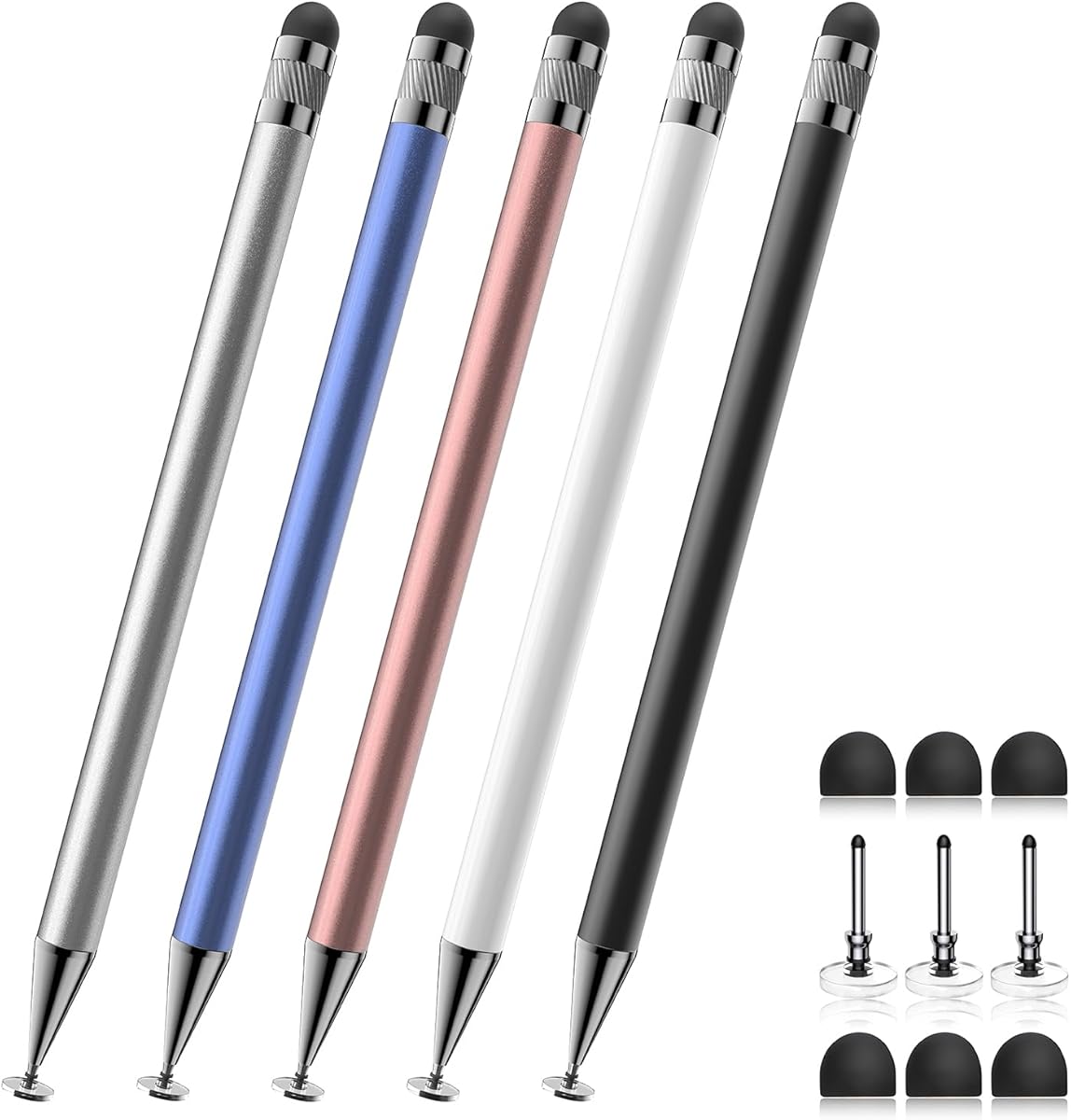
The Bopomofo set includes five colored, battery-free capacitive styluses with both transparent disc and rubber tips. Its 4.6 rating makes it one of the strongest-rated options in the guide, particularly for shared studios, classrooms, collaborative reviews, or anyone who wants several inexpensive pens ready to use.
We may earn a commission when you buy through this link, at no additional cost to you.
The disc tip supports accurate contact visibility and smooth writing or painting, while the rubber tip can provide more deliberate screen contact. Moderate pressure on the rubber tip is recommended, especially when a protective film is installed, to maintain a stable signal. The set works with iPads, iPhones, Galaxy tablets, Android devices, Kindles, and other capacitive screens.
Because these are passive styluses, they require no charging or Bluetooth connection and start working immediately. Six replacement rubber nibs and three disc nibs are included. That combination makes the package attractive for offices where pens may be shared frequently and lost or damaged tips need a quick replacement.
Photo-editing performance is limited by the passive design. There is no pressure sensitivity or palm rejection, so the set is better for menus, annotations, general navigation, and light drawing than for nuanced professional retouching. Even so, the generous multi-pen format, broad compatibility, and replacement supply offer strong utility for collaborative and mobile workflows.
Five differently colored pens make it easy to assign one stylus to each person or station. This avoids the disruption of passing a single pen around during client approvals, classroom demonstrations, or collaborative editing sessions.
The stylus behaves like a fingertip rather than an active pen. It supports tapping, scrolling, note-taking, and drawing, but it cannot reproduce pressure-based brush behavior or distinguish a resting palm from an active touch.
We may earn a commission when you buy through this link, at no additional cost to you.
The DAXINGXING 10-Pack carries the highest listed rating in this comparison at 4.7. It is a passive dual-tip stylus system designed for broad capacitive-screen use, with ten pens and 20 replacement nibs making it particularly suitable for busy creative teams, shared offices, classrooms, or households using several devices.
We may earn a commission when you buy through this link, at no additional cost to you.
Each 5.31-inch pen has a 0.21-inch precision tip and a wider 0.27-inch rubber end. The smaller tip supports handwriting, detailed sketching, and compact icon selection, while the broader end is better suited to scrolling and color filling. The soft rubber surface is intended to glide smoothly without scratching the display or leaving as many fingerprints as direct finger use.
The alloy bodies add a more substantial feel, while the mixed colors help users distinguish pens. No charging, pairing, apps, or drivers are required, so the pens can move between iPads, iPhones, Android devices, touchscreen laptops, and e-readers with minimal setup. Replacement tips can be changed quickly without tools.
As with other passive models, the absence of pressure sensitivity is the main constraint for photo editing. It will not deliver dynamic brush-width or opacity changes through pen pressure, nor will it provide palm rejection. Its value lies instead in volume, durability, universal touch control, and the flexibility of two tip sizes, which makes it a strong fit for distributed editing and review teams.
The fine end improves control in menus and annotations, while the broad end can cover scrolling and larger touch areas. Switching ends is immediate and requires no software or charging process.
Twenty spare nibs address a common problem with passive pens: the contact surface eventually wears. The ten-pen assortment also keeps replacements close at hand in shared workspaces.
We may earn a commission when you buy through this link, at no additional cost to you.
The MOSWAG 3-in-1 stands apart by combining a transparent disc tip, a nano-cloth tip, and a ballpoint end. Its 3.7 rating is the lowest among the products here, but that figure does not capture the full value of a tool that can move between touchscreen editing and traditional paper note-taking.
We may earn a commission when you buy through this link, at no additional cost to you.
The disc tip is intended for browsing and scrolling, while the cloth tip supports tapping, sketching, outlines, and precise edits. The ballpoint end creates a familiar writing experience on physical paper. This makes the pen useful for a hybrid workflow: reviewing an image on a tablet, noting crop ideas on paper, and then returning to the display.
The passive construction requires no Bluetooth, charging, or application installation. Its aluminum alloy body measures 16 centimeters and weighs approximately 18 grams, with an anti-slip design intended to reduce fatigue during extended drawing or note-taking. A spare disc tip, spare fiber tip, and storage pouch are included.
Its lower rating and passive design make it less compelling as a primary stylus for sophisticated photo retouching. There is no stated pressure response, and compatibility is presented through a list of specific mainstream devices plus other supported products. It is best viewed as a versatile hybrid pen for light editing, planning, annotation, and everyday creative work.
The ballpoint end adds a physical writing option without requiring a separate notebook pen. That is useful for recording feedback, sketching composition ideas, or writing a shot list while the tablet remains the central editing display.
The pen works without charging, pairing, or extra applications. Its simplicity suits quick reviews and travel, although it cannot provide pressure-sensitive brush effects or dedicated palm rejection.
We may earn a commission when you buy through this link, at no additional cost to you.
This Three-in-1 Precision Stylus offers two rubber tips and a transparent disc tip, combining a 4.5 rating with a simple, immediately usable design. It is aimed at general touchscreen interaction rather than advanced pen detection, making it useful for annotations, navigation, note-taking, and lighter creative work.
We may earn a commission when you buy through this link, at no additional cost to you.
The 0.18-inch and 0.27-inch rubber tips handle scrolling, games, writing, and ordinary screen control. The transparent disc makes the contact point visible and is presented as more responsive and accurate for detailed placement. A 180-degree flexible writing angle is included to reduce the chance of an awkward contact angle interfering with input.
All tips are replaceable without tools, and the process is described as taking only seconds. The pen needs no charging or pairing and is compatible with capacitive touchscreens across many categories, including iPads, iPhones, Galaxy devices, Kindles, Fire tablets, Chromebooks, and Nintendo Switch models. That broad support makes it convenient for a mixed-device household.
For photo editing, the disc tip may be useful for selecting small controls or making visible annotations, but the lack of pressure sensitivity limits advanced brushwork. The listing also positions the stylus as an accessible tool for children, adults, and seniors, including people with restricted hand movement. It is best for users who prioritize immediate operation and replaceable tips over specialist input features.
A physical pen can make small controls easier to target than a fingertip, particularly for users with larger fingers, long nails, or limited hand movement. The visible disc further assists careful placement.
Tool-free tip replacement keeps the pen usable when its contact surface wears down. Additional replacement tips are available under a separate ASIN, which should be considered when planning long-term use.
We may earn a commission when you buy through this link, at no additional cost to you.
The Wacom One Standard Pen is the premium specialist in this guide, combining 4,096 pressure levels, tilt response, and two shortcut buttons with battery-free operation. Its 4.6 rating reflects a mature pen design built specifically for selected 2023 Wacom One displays and tablets.
We may earn a commission when you buy through this link, at no additional cost to you.
Pressure sensitivity is the key advantage for photo editing. Applications that recognize the pen can vary brush size, opacity, or intensity according to how firmly the user presses. Tilt response can also support angle-dependent behavior in compatible software. Together, these capabilities offer a more expressive relationship between hand movement and on-screen editing than passive capacitive pens.
Two buttons provide quick access to commonly used keyboard shortcuts, helping streamline repetitive actions. The battery-free design eliminates charging downtime, while EMR technology allows the pen to work without a power source. Users can also purchase additional pen rears in different colors and with different clips, adding a degree of personalization.
Compatibility is the decisive trade-off. The pen is listed for Wacom One 12, Wacom One 13 Touch, Wacom One Small, and Wacom One Medium models, so it is not a universal tablet accessory. For a photographer who already owns one of these supported devices and wants advanced pen behavior, it offers the most purposeful editing experience among the picks.
Detailed pressure response can make soft transitions, graduated brush opacity, and pressure-dependent edits feel more intentional. The tilt feature may also improve natural movement when an application supports pen angle.
Using the intended tablet can provide a more cohesive pen and display experience than combining a generic active stylus with a compatible screen. This makes the pen most attractive to users already invested in Wacom hardware.
We may earn a commission when you buy through this link, at no additional cost to you.
The Wacom Intuos Pen LP1100K is designed for a defined family of Wacom Intuos tablets. It combines 4,096 pressure levels with EMR sensing, two shortcut buttons, and a battery-free construction. Its 4.6 rating makes it one of the strongest options for photographers who already use a compatible Intuos drawing tablet.
We may earn a commission when you buy through this link, at no additional cost to you.
Because the pen communicates through EMR rather than acting as a capacitive touchscreen accessory, it provides detailed pressure input on compatible Intuos hardware. That makes it well suited to brush selection, opacity changes, selection work, and detailed retouching. The two buttons allow frequently used shortcuts to be placed near the user's fingers for quicker access.
Its battery-free design keeps the tool light and comfortable while avoiding both charging time and battery management. EMR technology supplies the sensing capability without requiring a power source inside the pen. This combination of pressure resolution, responsive controls, and low-maintenance operation fits a dedicated desktop editing setup.
The limitation is compatibility. The pen is listed for the Wacom Intuos Small CTL4100, Intuos Small Bluetooth models CTL4100WLK0 and CTL4100WLE0, and Intuos Medium Bluetooth models CTL6100WLK0 and CTL6100WLE0. It is not intended for ordinary touchscreens. For owners of one of those tablets, it is a focused, capable editing pen rather than a general-purpose accessory.
The 4,096 pressure levels support more nuanced stroke control than a passive touchscreen pen. On a compatible Intuos tablet, this can improve brush tuning and the responsiveness of pressure-dependent editing tools.
Two buttons can reduce reliance on keyboard commands or repeated menu trips. When mapped to common tools, they help maintain a faster rhythm during repetitive mask, brush, and navigation tasks.
We may earn a commission when you buy through this link, at no additional cost to you.
The right stylus depends on how you edit, which hardware you use, and the degree of pen intelligence your applications need. Device compatibility, pressure response, palm rejection, tip design, battery behavior, and shortcut support deserve careful consideration before making a choice.
Check compatibility lists before focusing on tip shape or styling. A pen that feels excellent but is unsupported cannot deliver the intended editing workflow.
Choose pressure sensitivity when expressive brush behavior is central to your editing. Choose a passive pen when tapping and navigation are the priority.
Rest your hand naturally when possible. If palm rejection matters, verify that the specific model includes it rather than assuming all modern styluses provide it.
Use passive pens for simple touch work, active pens for mobile precision, and EMR pens with compatible graphics tablets for dedicated illustration and retouching.
Choose a narrow or visible tip for detail work and a broader tip for navigation. Replaceable tips are preferable for regular use.
Program shortcut buttons deliberately. A small number of well-chosen commands can remove more friction than a large collection of unassigned controls.
Favor battery-free operation for travel and frequent quick sessions. Ensure an active pen's charging routine fits your editing schedule.
Choose a multi-pen package for shared workflows and replacement readiness. Confirm that its input features still meet your precision requirements.
Start by confirming the exact tablet, laptop, or phone model and checking the pen's compatibility requirements. Charge an active pen as directed, enable Bluetooth when required, and install any necessary device or application updates. For a Wacom pen, connect the supported tablet, confirm that the application recognizes it, and test a simple brush stroke before beginning a detailed edit.
Configure side buttons and shortcuts inside your editing application, then choose a tip that suits the current task. Use a fine tip for selections, small controls, and tight masking; use a broader rubber tip for scrolling and general navigation. Keep the hand position consistent, use palm rejection when it is available, and avoid pressing excessively hard on capacitive pens because stronger force does not create realistic pressure response.
Store the pen in a protective case or pouch, keep replacement tips in a clean container, and avoid leaving it loose on a work surface. Clean the reusable tips according to the manufacturer's guidance and remove dirt from the screen before use. Replace a tip that feels rough or loses responsiveness, and follow the specified charger and power-adapter instructions for active models.
A stylus is not essential for every editing task, but it can make precise selections, masking, navigation, and annotation easier than using a fingertip. It becomes more valuable on smaller displays or when your software supports pressure-sensitive brushes and pen shortcuts. A mouse and keyboard may still provide the fastest workflow for broad, desktop-based edits.
Yes, passive styluses can handle menus, sliders, cropping, selection controls, and annotations on compatible touchscreens. They behave like an extended fingertip rather than a pressure-sensitive pen, however, so they are less suitable for artists who need brush opacity or size to respond to pressure. Active or EMR models offer a better fit for advanced retouching.
The JAMJAKE is the standout in this group for an iPad workflow that emphasizes palm rejection, a replaceable 1.5mm tip, and broad supported-model coverage. It does not provide pressure sensitivity, so an editor who needs expressive brush control should also consider an active stylus or an iPad with a pressure-sensitive system. Compatibility should always be checked using the exact iPad model.
It depends on the exact model. The Lenovo Digital Pen 2 is intended for Windows 10 and later devices supporting AES 1.0 pen technology, while the universal 1.5mm active stylus explicitly does not support Windows. Passive capacitive models may work as basic pointing devices on some touchscreen laptops, but their editing features remain limited.
Pressure sensitivity measures how hard the pen is pressed against the surface and can control brush size, opacity, or density. Tilt sensitivity detects the angle at which the pen is held, which can influence stroke behavior or brush shape in supporting software. Pressure is central to detailed brushwork, while tilt can add another layer of natural movement.
Not always. Passive capacitive pens and the two Wacom EMR pens operate without charging, while some active models use rechargeable batteries or replaceable batteries. Battery-free operation is convenient for quick edits and travel. If you choose an active pen, check its stated runtime, charging time, sleep behavior, and required charging accessories before relying on it during a long session.
A stylus with palm rejection is the most direct solution because the display can distinguish the active pen from the resting hand. The JAMJAKE explicitly includes this feature. Without palm rejection, resting only the side of the hand or keeping the palm slightly raised can help, although this approach is less consistent for long editing sessions.
Only if the regular tablet appears on the pen's explicit compatibility list. The Wacom One Standard Pen works with named Wacom One displays and tablets, while the Intuos LP1100K is designed for selected Intuos models. Buying either for an unrelated iPad or Windows touchscreen would likely frustrate the intended workflow, so verify hardware before ordering.
The Lenovo Digital Pen 2 stands out as the strongest general workflow option for compatible Windows systems, combining pressure sensitivity, customizable buttons, and a comfortable metal design. The Wacom One Standard Pen offers the most focused premium experience for its supported tablets, while the DAXINGXING ten-pack provides a practical high-volume passive solution for shared editing and review workflows.
For advanced brushwork, prioritize pressure sensitivity, tilt response, and software compatibility. For touch-based selection and annotation, a passive stylus may be enough, especially when it includes a visible disc tip, replaceable nibs, and broad device support. For long mobile sessions, weigh palm rejection, battery requirements, grip, and charging convenience before making a final choice.
Always verify the exact display model, operating system, and editing application before ordering. Ratings can change as reviews evolve, and prices fluctuate, so compare current offers, seller information, warranty terms, and the latest compatibility details at the time of purchase.


