
AV Access KVM Switch 3 Monitors 2 Computers KVM Docking 8K@60Hz
4.9Editor score
Triple displays and 100W charging
Shared 1Gb Ethernet connection
10Gbps USB and SD card reader
Extended Windows multi-monitor support
Our KVM Switch for Triple Monitors guide compares ten switches for two to four PCs, covering display modes, USB sharing, high-res video, docking, refresh
A KVM switch for triple monitors lets one keyboard, mouse, and set of displays serve multiple computers without manually reconnecting every cable. The strongest options balance multi-display support, suitable video standards, shared USB connectivity, convenient switching, and compatibility with the computers and monitors already in your workspace.
This guide compares ten switches ranging from straightforward HDMI models to DisplayPort and USB-C docking stations, with some supporting two, three, or four PCs. We examined the stated display capacities, resolution and refresh-rate support, extend or mirror modes, USB connections, included accessories, switching methods, operating-system support, and important compatibility limitations.
The picks show why a feature-rich KVM is not automatically the right choice for every desk. Some users need only dependable 4K switching, while others prioritize 8K support, four USB 3.0 ports, 100W laptop charging, network connectivity, or a wired remote. Marketplace listings and product details can change, so confirm specifications before ordering.
4.9Editor score

4.6Editor score

4.3Editor score
The comparison below highlights the major differences in computer count, video connections, supported display modes, refresh rates, USB capabilities, and switching methods. It is designed to make the practical trade-offs easier to understand before checking current product listings and compatibility details.


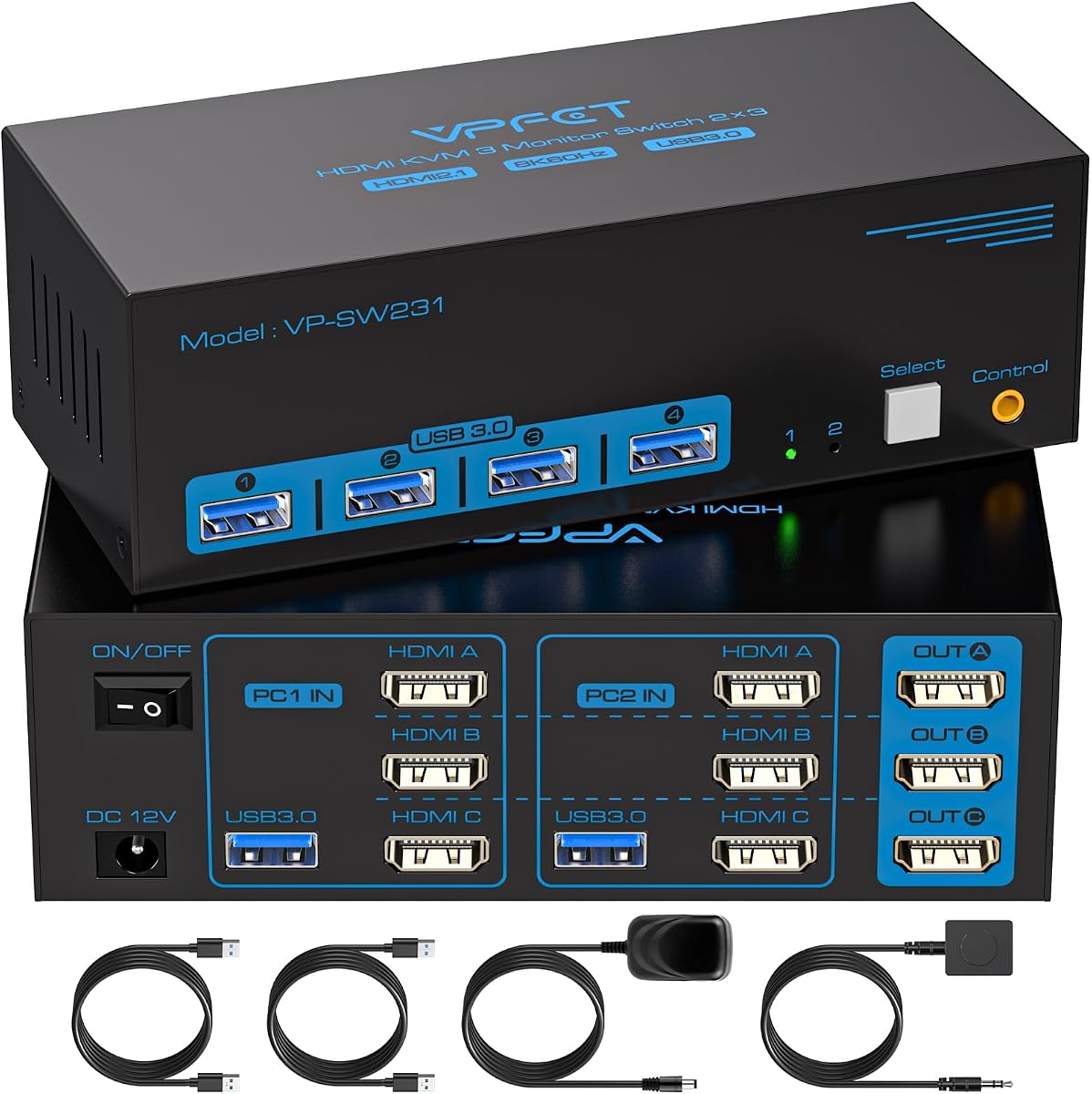


This is a straightforward HDMI-based KVM switch for people who want two computers to share three displays and four USB devices. It supports resolutions up to 4K at 60Hz, with backward compatibility for 4K30, 1080p, and lower resolutions. No customer rating is supplied, so the available specifications and stated features are more useful indicators than a rating-based comparison.
We may earn a commission when you buy through this link, at no additional cost to you.
Its main advantage is the all-HDMI layout. Each computer connects to the switch with three HDMI cables, while the switch sends those signals to three monitors. Extended and duplicate or copy modes are available through the computer's display controls. Four shared USB 3.0 ports support keyboards, mice, printers, scanners, and similar accessories at data rates up to 5Gbps, while backward compatibility allows older USB devices to remain usable.
There are practical limitations to consider. The switch is limited to 4K60 rather than the 8K and higher-refresh combinations found on several competing models. Keyboard hotkey toggles are not supported, although a front-panel button and an included wired controller provide two switching methods. Each source computer must independently support three-display output, and signal converters or unsuitable cables can prevent the intended resolution from working reliably.
This model is best for an office or home workstation built around HDMI monitors, especially when a simpler interface is preferable to docking features and aggressive gaming specifications. It is also a reasonable choice for a shared three-screen setup that primarily runs at 4K60. It would be less suitable for demanding high-refresh gaming, users with DisplayPort-only displays, or anyone requiring network connectivity, laptop charging, or a USB-C dock.
Once both systems are connected, switching the active computer changes the display output while the same keyboard, mouse, and USB devices remain at the desk. The panel button is convenient for nearby operation, while the wired controller lets the user keep the main switch out of the main work area.
The switch is intended for 4K60 output, and the source computer, display, and HDMI cables must all support the target mode. Its listed backward compatibility makes it suitable for 1080p and other common resolutions, but it cannot deliver the 8K capabilities advertised by some alternatives.
We may earn a commission when you buy through this link, at no additional cost to you.
The UGREEN 8K DisplayPort KVM is designed for two computers sharing three monitors through a two-DisplayPort-plus-one-HDMI arrangement. Its stated capabilities reach 8K at 60Hz and include 4K modes up to 240Hz, along with HDR10+, HDCP, VRR, FreeSync, and G-Sync support. The 3.9 customer rating is the lowest among the rated products here, so buyers should examine the listing and compatibility details carefully.
We may earn a commission when you buy through this link, at no additional cost to you.
The broad refresh-rate range makes this model appealing for users with demanding mixed-purpose workstations. DisplayPort 1.4 and HDMI 2.1 outputs are paired with four shared USB 3.0 ports. Switching can be performed from the panel or a desktop controller, and both mirrored and extended layouts are supported. The aluminum housing adds a more substantial enclosure than many generic plastic alternatives.
Its limitations are important. The manufacturer notes that both source computers need to support triple-monitor output, with two DisplayPort outputs and one HDMI output apiece. A separate USB connection from each computer is also required for the shared peripherals. The package includes four DisplayPort cables, two HDMI cables, two USB-A cables, a power adapter, a desktop controller, and a guide, but EDID emulation is not supported.
Signal converters and docking stations can create compatibility issues, and using short, suitable cables is important when pursuing 8K60. This KVM is a sensible candidate for a two-PC professional or gaming station whose monitors use a mixture of DisplayPort and HDMI. It is less appropriate if you need MacBook-style mirrored-only docking behavior, network passthrough, laptop charging, or a product with a stronger established customer rating.
The stated 8K60 and 4K240 support gives users room to choose between maximum pixel density and very high refresh rates. Every component in the signal path must support the chosen mode, so verify the graphics card, monitor, and cable specifications before installation.
The included desktop controller allows switching without reaching the enclosure, while front-panel controls and status indicators provide a nearby alternative. This arrangement suits desks where a laptop and desktop or two workstations are regularly alternated.
We may earn a commission when you buy through this link, at no additional cost to you.
The AV Access B23 combines a triple-monitor KVM with a substantial docking platform, earning it a place as the most premium option in this guide. It has the highest listed customer rating at 4.9 and supports a USB-C laptop alongside a desktop PC, up to three displays, shared peripherals, audio, network connectivity, and laptop charging. The desktop source supports up to 8K60 or 4K165, while the USB-C laptop has separate stated output limits.
We may earn a commission when you buy through this link, at no additional cost to you.
The single-cable laptop workflow is the standout feature. A compatible full-featured USB-C connection can carry display output, data, and up to 100W of power delivery, reducing the need to attach a charger and several other leads to the laptop. The B23 also provides two USB-A and one USB-C port rated up to 10Gbps, three additional 5Gbps USB-A ports, an SDXC card reader, and a 3.5mm headset connection.
Compatibility differs significantly by operating system. Compatible Windows laptops can use extended multi-monitor mode through MST, while MacBooks support mirrored displays only and cannot show independent extended content across multiple external monitors. The USB-C port must support video output. Video cables are not included with this version, and users should also confirm that their chosen displays, dock, or adapters will cooperate without compatibility issues.
This is the strongest recommendation for a mixed laptop-and-desktop desk that needs charging, high-speed storage, fast peripherals, card access, and shared networking in one enclosure. The active computer can be changed using the top button or wired remote, while the shared 1Gb Ethernet connection remains active on both systems so background downloads, synchronization, and updates can continue. It is more complex than a basic switch but reduces the need for several separate desk devices.
A compatible USB-C connection can combine video, data, and charging, allowing a laptop to join the same three-display arrangement as the desktop. This is especially useful for users who frequently undock and reconnect a portable workstation.
High-speed USB ports support storage and everyday accessories, while the SDXC reader and headset jack add convenient access. Keeping the shared Ethernet connection active on both computers prevents background network work from stopping when control moves to the other system.
We may earn a commission when you buy through this link, at no additional cost to you.
This AOOCOO model stands out for controlling as many as four desktop computers while sharing a three-monitor arrangement. It uses two DisplayPort 1.4 inputs and one HDMI 2.1 input per computer, with corresponding outputs for the displays and four shared USB 3.0 ports. The listed 4.5 rating reflects a broadly capable design, and the included remote, power adapter, and USB cables make it easier to assemble a multi-PC command center.
We may earn a commission when you buy through this link, at no additional cost to you.
The output specifications cover 8K60 on the HDMI side and 8K30 or 4K144 on DisplayPort, with backward compatibility for lower standards. The four shared USB ports operate at up to 5Gbps and accommodate keyboards, mice, printers, scanners, and other devices. A front-panel button and included wired remote offer two ways to change the active source, with extended and copy display modes also supported.
The main caveat is the amount of compatible hardware each source requires. Every computer needs two DisplayPort outputs and one HDMI output to use all three screens concurrently. Systems combining integrated graphics with a discrete card may also present connection or routing complications, and suitable short cables are preferable when running high-resolution modes. The package includes four USB 3.0 cables but does not indicate that display cables are included.
This switch is ideal for test benches, IT offices, trading desks, or creative studios that routinely rotate among four systems. It provides more source flexibility than the common two-computer model without moving into full docking-station functionality. Choose it when reliable source selection and broad display standards matter more than integrated laptop charging, Ethernet sharing, or card-reader functions.
Four source computers can share the same monitors and USB devices, reducing the need to maintain separate cable arrangements. The wired remote makes it practical to change sources without reaching across the desk.
Triple-display operation depends on each source having the correct mixture of DisplayPort and HDMI outputs. Check graphics-card support before installing the switch, particularly when a system uses more than one GPU.
We may earn a commission when you buy through this link, at no additional cost to you.
The 8K Dual-Computer KVM offers a useful balance of capability and simplicity for two PCs sharing three monitors. It combines one HDMI 2.1 and two DisplayPort 1.4 connections, supports HDMI output up to 8K60 or 4K120, and supports DisplayPort output up to 8K30 or 4K144. Its 4.3 rating is solid, although it does not lead the field.
We may earn a commission when you buy through this link, at no additional cost to you.
Four USB 3.0 ports provide up to 5Gbps for data and shared devices such as keyboards, mice, drives, printers, and cameras. The switch is described as compatible with laptops, desktops, PS4, Raspberry Pi, DVR systems, and major desktop operating systems. A front button, 1.5-meter wired switching control, and status indicators make source changes visible and straightforward.
Full functionality still depends on the source hardware. Each PC must support three independent displays and provide two DisplayPort outputs plus one HDMI output. The manufacturer recommends native connections and active DisplayPort-to-HDMI adapters, while warning against passive adapters. Cables appear to be required for video and USB connections, and the external 12V supply should be connected for reliable operation.
This is our best budget pick because it brings 8K-class support, 4K high-refresh modes, four USB ports, and two convenient switching methods into a two-computer design without adding a separate docking station. It is a strong fit for a home office, gaming desk, classroom, or meeting system that needs broad display compatibility. Buyers seeking USB-C charging, Ethernet passthrough, or a four-PC option will need a more specialized model.
The switch supports demanding 8K and high-refresh combinations while retaining a straightforward shared-peripheral layout. It is a practical middle ground between a basic HDMI switch and a multi-function docking platform.
The stated compatibility extends beyond standard desktop PCs to laptops and other devices with suitable native video outputs. Adapter limitations remain important, so avoid assuming every converter will preserve the full feature set.
We may earn a commission when you buy through this link, at no additional cost to you.
This AV Access docking KVM is built for demanding multi-computer users who want one enclosure to handle displays, peripherals, network connectivity, audio, and laptop charging. It supports a USB-C laptop and a desktop PC across up to three displays. The desktop path is stated to reach 8K60, 4K165, or even 1080p480, while the USB-C laptop path supports up to 4K60, 1440p165, or 1080p240.
We may earn a commission when you buy through this link, at no additional cost to you.
The dock also includes three 10Gbps USB ports, three 5Gbps USB-A ports, a shared 1Gb Ethernet connection, SDXC card access, a 3.5mm headset jack, and 100W power delivery over USB-C. Switching is available from the top-mounted button or wired remote. Its 4.2 rating is respectable, though the sibling AV Access B23 has a higher listed rating and closely related capabilities.
As with other USB-C docks, operating-system behavior matters. Compatible Windows laptops can use extended multi-monitor output through MST, while MacBooks are limited to mirrored displays and cannot present independent extended content across several external monitors. The laptop's USB-C port must support video output. The presence of many advanced features also makes this more involved than a straightforward two-PC switch.
Choose this model for a high-performance desk where gaming, high refresh rates, laptop charging, fast storage, and shared networking are priorities. It can consolidate a separate KVM, dock, hub, and card reader into one unit, which is valuable where desk space and cable management matter. It is less compelling for a basic office that only needs dependable 4K switching.
The desktop source supports unusually high refresh-rate options for fast gaming and responsive workflows. Compatibility still depends on the graphics hardware, display, cables, and operating system recognizing the desired mode.
Fast USB, charging, card access, audio, and Ethernet are integrated into the same unit that switches the computers. Consolidation is especially appealing when a portable laptop is the frequent central workstation.
We may earn a commission when you buy through this link, at no additional cost to you.
The CMSTEDCD HDMI KVM targets users whose displays are connected through HDMI and who still want modern high-resolution performance. It supports two computers sharing three monitors, a keyboard, a mouse, a printer, storage, and other USB peripherals. Its listed specifications reach 8K60 and 4K120, with backward compatibility for 4K30, 1080p, 720p, and 3D modes.
We may earn a commission when you buy through this link, at no additional cost to you.
Four USB 3.0 ports provide backward compatibility with USB 2.0 devices, while a wired controller and a body-mounted Select button provide two switching methods. A 12V, 1A adapter is included. The switch is driver-free and supports plug-and-play operation, making it a relatively uncomplicated option for an office, editing desk, or home system with matching HDMI displays.
The main limitation is the absence of DisplayPort. Users with modern high-refresh gaming displays that rely on DisplayPort may have to change cables or use a different model. Triple-screen use also depends on both source computers supporting multiple displays independently. Unlike the AV Access options, this device does not provide USB-C charging, Ethernet passthrough, card reading, or a broader docking feature set.
This switch is best for a straightforward two-PC installation in which all three monitors accept HDMI and high resolution is important. It offers more current standards than a basic 4K60 unit without adding the complexity of a docking station. It is less suitable for users with mixed DisplayPort and HDMI requirements, MacBook-centric workflows, or a need to keep network tasks running on both systems through the KVM.
Support for 8K60 and 4K120 provides headroom for detailed and fast displays while retaining a three-HDMI layout. Confirm that the computer and monitor can output the selected resolution through the supplied connection path.
The front Select button is useful when the switch is within reach, while the wired remote can be positioned to keep the main enclosure away from the immediate work area. The design avoids reliance on keyboard hotkeys.
We may earn a commission when you buy through this link, at no additional cost to you.
The AOOCOO Three-PC KVM offers a middle ground between common two-computer switches and more elaborate four-system models. It allows three computers to share three monitors through two DisplayPort connections and one HDMI connection each. The switch supports 8K60 and 4K144, while four USB 3.0 ports provide up to 5Gbps for shared keyboards, mice, printers, and other devices. Its listed rating is 4.1.
We may earn a commission when you buy through this link, at no additional cost to you.
Users can select the active source with the front-panel button or an included wired remote, and two color indicators identify the selected computer. The unit is driver-free and supports plug-and-play operation. Extended and duplicate display modes are available, with the display configuration selected through the computer's display controls. The package includes three USB 3.0 cables, a wired controller, a 12V power adapter, and a user manual.
The hardware requirements remain demanding. Every computer needs a compatible mixture of two DisplayPort outputs and one HDMI output, and each source must connect its USB input for keyboard and mouse recognition. The manufacturer recommends HDMI 2.1 and DisplayPort 1.4 cables and notes that shorter cables are preferable where the distance permits, particularly for maximum resolution and refresh rate.
This switch is a good fit for a shared office, development bench, or multi-workstation desk that regularly uses three systems but does not require four sources. It provides high-resolution outputs and convenient remote switching in a compact design. It will not suit users who need USB-C charging, shared Ethernet, integrated card access, or laptop-first docking, and it remains less flexible than the four-PC AOOCOO option.
Three source capacity is useful in team offices, IT testing areas, and creative studios where machines are rotated frequently. It preserves a conventional display-and-peripheral KVM workflow without adding a full dock.
The three-display capability is not automatic; each computer must expose the required video outputs and support enough simultaneous displays. The USB input from every source should also be connected so shared input devices are recognized.
We may earn a commission when you buy through this link, at no additional cost to you.
The DisplayPort Triple-Monitor KVM is built for a focused workstation in which both PCs and all three displays rely on DisplayPort. It supports 4K at 144Hz and is also described as 8K60-capable, with USB 3.0 sharing up to 5Gbps. Its 4.4 rating is above the group average and reflects a straightforward design for high-refresh, multi-monitor office or gaming environments.
We may earn a commission when you buy through this link, at no additional cost to you.
One wired controller enables quick switching between the two systems, letting a user keep the same three displays, keyboard, mouse, and USB accessories in place. The plug-and-play approach reduces setup complexity. The product is particularly relevant to professional video editing, graphic design, general productivity, and gaming workflows where DisplayPort is already the standard connection in the desk.
The main condition is that each source computer must have three DisplayPort outputs capable of driving three displays simultaneously. The switch does not offer HDMI inputs, so systems with mixed video interfaces would need additional equipment or a different model. It also lacks the USB-C power delivery, shared Ethernet, card reader, and audio features found in full docking stations, remaining focused on switching displays and USB devices.
This is a strong recommendation for users with modern DisplayPort-only workstations who prioritize 4K144 output and rapid source changes. It is not the right choice for laptops that require USB-C docking, mixed HDMI and DisplayPort desks, or setups where keeping network connectivity active through the KVM is important. Confirm the exact cable and port arrangement before installation.
Using a consistent DisplayPort path for the computers and monitors can reduce cable confusion. The three-output-per-source requirement should be checked against the available graphics ports on each PC.
The included wired controller changes the selected source without reaching into the cable cluster. Shared USB connectivity keeps the keyboard, mouse, and common accessories in the same positions on both systems.
We may earn a commission when you buy through this link, at no additional cost to you.
The HDMI DisplayPort Triple KVM provides the strongest overall balance in this group, combining a 4.6 customer rating with broad display standards and a complete two-computer feature set. It shares three monitors and four USB 3.0 ports between two systems, using two DisplayPort 1.4 connections and one HDMI 2.1 connection for each computer. Output support is listed up to 8K60 and 4K144, with backward compatibility for lower modes.
We may earn a commission when you buy through this link, at no additional cost to you.
Both extended and mirrored layouts are supported through the computer's Windows and P display controls. A front-panel button and included wired remote provide two switching methods, and an LED identifies the active system. The package includes one HDMI 2.1 cable, two DisplayPort 1.4 cables, two USB 3.0 cables, a wired remote, a manual, and a 12V power adapter, along with a stated one-year warranty service.
Users must still confirm that each PC can drive three displays and has the necessary mixed video outputs. Signal converters or docking stations may produce compatibility issues, and EDID emulation is not supported. The product information also recommends connecting the external power supply for optimal operation. These limitations make it less flexible than a true docking station but preserve a cleaner, more conventional KVM design.
This is our top overall recommendation because it combines mixed DisplayPort and HDMI connectivity, strong resolution and refresh-rate claims, four shared USB ports, convenient remote switching, and a favorable rating. It is well suited to a two-PC professional desk, editing suite, or gaming setup that wants a modern three-screen KVM without separate charging, network, or card-reader functions.
Two DisplayPort connections and one HDMI connection accommodate many modern monitor arrangements without requiring a particular single interface. The included cable set covers the specified connection pattern, though users should confirm cable length and monitor support.
The wired remote can be placed near the keyboard or mouse for rapid source changes, while the panel button and status light provide immediate local feedback. Shared USB devices remain connected throughout the transition.
We may earn a commission when you buy through this link, at no additional cost to you.
The right triple-monitor KVM depends less on headline resolution and more on whether its ports, source capabilities, and switching features match your exact desk. Use the following factors to separate a compatible purchase from a specification that sounds impressive but cannot be realized with your computers and displays.
Start by counting the systems that need access to the same display set. Most models in this guide control two computers, while the AOOCOO options support three or four. The video-input count matters as much as the headline computer count: a two-PC model still needs two DisplayPort outputs and one HDMI output per computer when using the full mixed-interface layout. An all-HDMI design instead requires three HDMI connections on every source. Verify that each computer can drive all three screens simultaneously, since a source that supports only one or two displays cannot activate the entire arrangement.
A triple-monitor KVM can use an HDMI-only, DisplayPort-only, or mixed design. HDMI-only models are convenient for displays with a single common interface and avoid cable-type mismatches. DisplayPort is widely used for high-refresh PC gaming and professional monitors, while mixed HDMI and DisplayPort designs provide flexibility across a varied desk. Check not only the shape of the connectors but also the version: listed capabilities depend on HDMI 2.1 or DisplayPort 1.4 equipment. Adapters and signal converters may reduce compatibility, and several manufacturers specifically warn against passive DisplayPort-to-HDMI adapters.
Claims such as 8K60, 4K144, and 4K240 describe different priorities: maximum detail, smooth motion, or extremely high frame rates. The highest resolution does not apply to every output on every switch. For example, some models list 8K60 on HDMI but only 8K30 on DisplayPort, while the USB-C input on a dock may have a lower ceiling than the desktop input. The graphics card, operating system, monitor, cables, and switch must all support the selected mode. Use the lowest shared specification when planning a mixed set of displays rather than assuming one maximum applies to all three screens.
Extended mode is usually essential for productivity because each monitor can show a different part of the desktop. Copy or mirror mode repeats the same image across all three displays, which can be useful for presentations, demonstrations, or a consistent overview. Some KVMs configure this through the computer's operating system, while others provide a physical display-mode process. Confirm the required workflow: certain models support extended and copy modes but do not support keyboard hotkey switching, so a front button or wired remote becomes necessary.
A useful triple-monitor KVM should share at least a keyboard, mouse, and preferably storage, printer, scanner, or webcam. Most models here provide four USB 3.0 ports with stated transfer rates up to 5Gbps, while the AV Access docks add USB-C and 10Gbps connections. Each source must have its own USB upstream connection to the KVM or it may not recognize the shared keyboard and mouse. USB 3.0 is backward compatible with older devices, but high-power storage may benefit from the switch's external power supply.
A conventional KVM is best when two desktop computers already have complete video, USB, network, and power connections. A docking-oriented KVM becomes more valuable when a frequently used laptop must connect through one USB-C cable while also receiving video, data, and charging. The AV Access options provide up to 100W power delivery, shared 1Gb Ethernet, fast USB, SD card access, and audio. These extras consolidate equipment but introduce operating-system restrictions, especially the stated mirrored-only behavior for MacBooks.
A panel button is direct and easy to understand, while a wired remote can be positioned outside the main work area and may be more comfortable when the enclosure sits behind a monitor bank. Some models support both. Keyboard hotkeys are convenient in many offices but are explicitly unsupported by several products here. Before buying, check which cables, power adapters, remotes, and user guides are included; package contents vary significantly, with some listings including full video cable sets and others requiring users to supply their own.
Driver-free plug-and-play operation is common, but operating-system limitations can still affect display behavior. Compatible Windows USB-C laptops may support extended multi-monitor output through MST, whereas MacBooks are limited to mirrored output in the cited AV Access models. EDID emulation is also absent from some switches, and a source connected through a dock or converter may not negotiate the intended resolution. Review the compatibility notes for your exact PC, laptop, graphics card, monitor adapters, and operating system rather than relying only on the main feature list.
Begin by confirming that each computer supports three simultaneous displays and has the required mix of DisplayPort and HDMI outputs. Disconnect power before changing cables, then connect the monitor cables to the switch's output ports and each source's video outputs to the matching computer inputs. Connect the supplied external power adapter where the product requires it. Finally, attach the USB upstream lead from every computer so the shared keyboard, mouse, and peripherals are recognized.
Power on the computers and displays, then use the panel button or wired controller to select the active system. Configure the desired display arrangement through the computer's operating system, choosing extended mode when each screen should show different content or copy or mirror mode when the same image should appear on multiple displays. Test the keyboard, mouse, storage, network, and other connections before reorganizing the desk. If a display remains blank, verify the source supports that resolution and refresh rate and that the cable type and length are appropriate.
Keep the enclosure away from moisture, excessive heat, and cramped spaces that can obstruct ventilation. Route display and USB cables without creating sharp bends or strain on the connectors. For cleaning, disconnect power, use a dry or lightly damp soft cloth, and avoid spraying liquid directly onto the unit. Periodically check the power connection, indicator lights, and cable seating, especially if a system fails to recognize peripherals or a monitor loses synchronization after the equipment has been moved.
No. The computer must natively support three simultaneous displays, and the switch must have enough compatible video inputs and outputs for that arrangement. A KVM routes existing signals; it does not normally add graphics-processing capability. Check the graphics card, motherboard outputs, drivers, and operating system settings before connecting a three-screen setup.
Extended mode treats the three monitors as separate workspaces, so applications, documents, or windows can move between them. Mirror or copy mode shows the same image on each screen. Extended mode is more useful for productivity, while mirroring is valuable for presentations, demonstrations, or arranging multiple displays as a single visual group. Mode selection is commonly handled through the computer's display controls.
Yes, if the switch and connected equipment are intended to carry 8K signals. The source, monitor, cable, and switch should all support the target resolution and refresh rate. Short, high-quality cables are generally preferable, and passive adapters may limit the available modes. The specific maximum can also differ between the HDMI and DisplayPort sides of a switch.
The most common cause is a missing USB upstream connection from the selected computer to the KVM. Connect the corresponding USB input lead for every source and make sure the keyboard and mouse are plugged into shared USB ports. Also verify that the correct computer is selected, the external power adapter is connected when required, and the peripherals are compatible with the switch's USB standard.
It depends on the specific dock's stated operating-system support. The AV Access models in this guide say that MacBooks support mirrored displays only and cannot show independent extended content across multiple external monitors through the dock. Compatible Windows laptops can use extended multi-monitor mode through MST. Always confirm the laptop's USB-C port supports video output and check the manufacturer's current compatibility instructions.
Choose based on your monitors and workload. Maximum-resolution support benefits users who need very fine detail, while 4K144 or higher refresh rates suit fast gaming and responsive professional workflows. The best choice supports the actual combination used by your sources and displays. A switch cannot create a mode that one of those components cannot carry.
A docking-style KVM is better when a laptop needs one USB-C connection for video, data, and charging, or when shared Ethernet, fast storage, card reading, and audio are important. A basic switch is usually simpler for two fully equipped desktop computers. Choose based on the connections you need rather than on the number of features alone.
Check them whenever a display or peripheral stops working, after moving the switch, and as part of a routine desk inspection. Look for loose connectors, bent plugs, damaged insulation, and strain on the power lead. Keeping the enclosure ventilated and avoiding moisture will also reduce the likelihood of connection or power problems.
The HDMI DisplayPort Triple KVM is the best overall choice for most two-computer desks because it combines a strong customer rating, 8K60 and 4K144 support, four shared USB 3.0 ports, extended and mirrored modes, and both panel and remote switching. The AV Access B23 is the premium option for a laptop-and-desktop workstation, while the 8K Dual-Computer KVM delivers the strongest balance of modern display support and practical value.
Prioritize compatibility over headline specifications. Verify that every computer can drive three displays, that the switch provides the required DisplayPort and HDMI connections, and that the shared USB upstream leads are installed. High-resolution and high-refresh modes must be supported by the graphics card, operating system, display, cable, and selected switch port. Consider a full dock only when USB-C charging, shared Ethernet, fast storage, or portable workstation use justifies the added complexity.
Finally, review the current marketplace listing, package contents, warranty details, and compatibility notes before ordering, since manufacturer information and included accessories can change over time. With the source hardware confirmed, one of these switches can reduce cable clutter and make two, three, or four computers far easier to manage across a professional triple-monitor desk.