
Moread DisplayPort to HDMI Adapter
4.6Editor score
4K at 30Hz output
1080p at 120Hz support
Passive unidirectional converter
Locking DisplayPort connector
Broad desktop compatibility
Explore HDMI Output to Input Adapter for Laptop options, comparing formats, display directions, refresh rates, compatibility, setup needs, and portability
Connecting a laptop to a larger display often comes down to matching the right signal direction, connector type, and supported resolution. An HDMI Output to Input Adapter for Laptop can bridge USB-C, DisplayPort, VGA, or Mini HDMI sources, but not every adapter supports every direction, refresh rate, or audio format.
This guide compares ten options across their source connections, output formats, maximum resolutions, compatibility requirements, and practical limitations. It includes USB-C-to-HDMI converters, DisplayPort adapters, legacy VGA solutions, an HDMI switch, and HDMI-to-DisplayPort converters designed for different workstation arrangements.
Each pick highlights what makes it useful for presentations, extended desktops, gaming, media viewing, or portable setups, while noting important restrictions. The top choices emphasize dependable signal conversion and clear compatibility, and current pricing and availability should be confirmed before purchasing.
4.6Editor score

4.6Editor score

4.3Editor score
The table below compares the source connection, signal direction, maximum stated video performance, and key setup consideration for all ten adapters, helping narrow the field before checking full device compatibility.




The Anker USB C to HDMI Adapter is a strong all-purpose choice for a modern laptop with a video-capable USB-C port. Its 4.6 rating reflects a favorable balance of straightforward setup, 4K at 60Hz support, and a compact construction. It converts USB-C DisplayPort Alt Mode, USB4, or Thunderbolt connections for use with an HDMI display.
We may earn a commission when you buy through this link, at no additional cost to you.
One of its most useful qualities is how little setup it requires. The adapter turns a compatible USB-C port into an HDMI connection without installing drivers or applications. Its lightweight aluminum casing helps dissipate heat, while the reinforced braided-nylon cable is designed to tolerate the twisting and pulling associated with portable use. That makes it practical for presentations, extended workspaces, and travel.
The primary limitation is that it handles video only. It does not provide charging or Power Delivery, so a separate charging connection remains necessary if the laptop's USB-C port is otherwise used for power. Compatibility is also determined by the laptop rather than the display alone: the USB-C port must support DP Alt Mode or one of the listed video-capable connection standards.
This is the most broadly appealing pick for users who want a straightforward USB-C-to-HDMI path with high-resolution support. Choose it when your laptop has a modern video-capable USB-C port and you want dependable 4K60 output without installing software. It is less appropriate if you need simultaneous charging, HDMI input, or a converter that works from an ordinary USB-A port.
The adapter supports video up to 4K at 60Hz through compatible USB-C DisplayPort Alt Mode, USB4, or Thunderbolt connections. For most users, the practical advantage is that no separate converter box or driver installation is required.
The aluminum housing assists with heat dissipation, while the reinforced braided-nylon cable is intended to withstand repeated bending and handling. Its compact form makes it easy to carry between a desk, meeting room, and home office.
We may earn a commission when you buy through this link, at no additional cost to you.
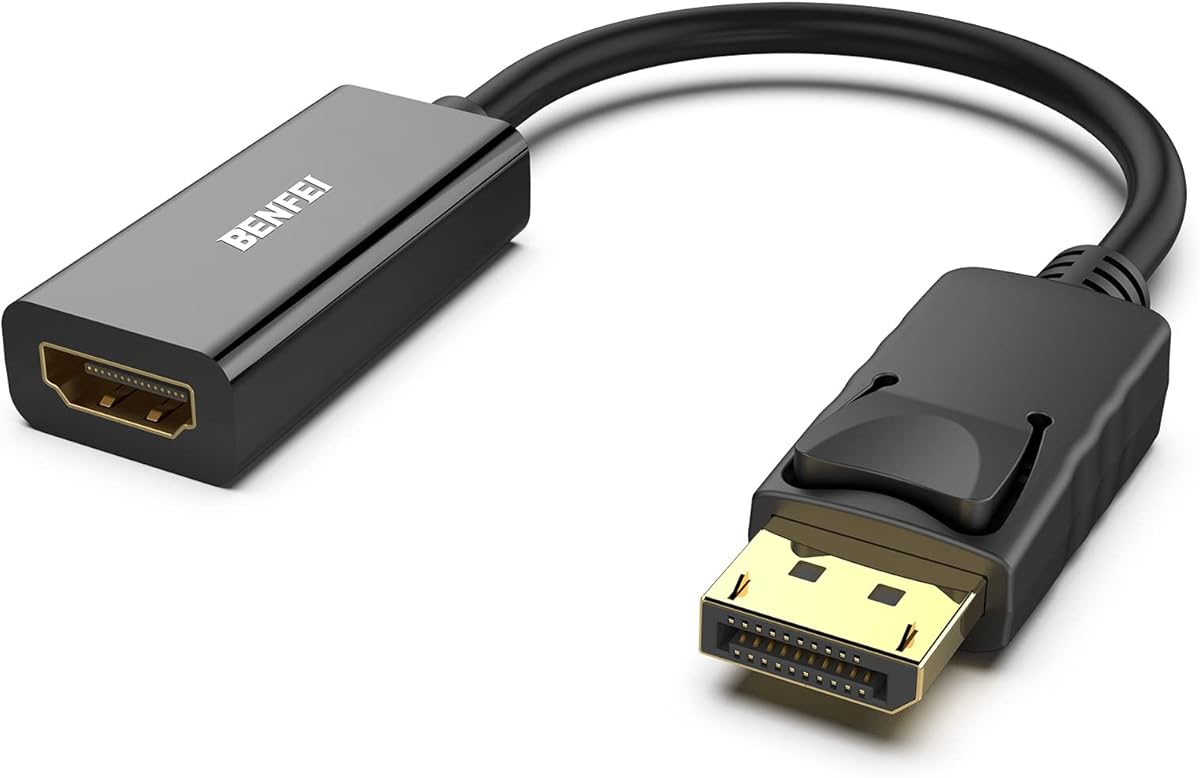
The BENFEI 4K DisplayPort to HDMI Adapter is a compact option for a laptop that outputs DisplayPort and needs to connect to an HDMI-equipped monitor, projector, or television. It has a 4.5 rating and uses a built-in conversion chip to translate the source signal. Its lightweight design is particularly convenient for presentations and mobile work.
We may earn a commission when you buy through this link, at no additional cost to you.
Resolution support reaches 4K at 30Hz and 1920 by 1080 at 60Hz, with additional compatibility for 720p, 1600 by 1200, and 1280 by 1024. The gold-plated DisplayPort connector is designed to resist corrosion and abrasion, supporting stable transmission over regular use. A latching connector also helps prevent the cable from being pulled out accidentally.
Its one-way design is the most important caveat. The adapter converts DisplayPort output to HDMI input and cannot send an HDMI source to a DisplayPort monitor. Users should also press the release button before unplugging it because of the locking DisplayPort design. For a 4K presentation or productivity display, the 30Hz ceiling is suitable, but it may feel limited for high-motion gaming.
This adapter is best for mobile users whose laptops have DisplayPort output and whose destination equipment accepts HDMI. It is especially convenient for projectors, meeting-room displays, and secondary monitors. Buyers who need 4K at 60Hz, HDMI-to-DisplayPort conversion, or smooth high-refresh gaming should select a more specialized option.
The lightweight adapter is small enough to tuck into a pocket and is positioned for presentations, extended desktops, and projector connections. It avoids the bulk of a full docking station when only one display output is required.
This is a DisplayPort-to-HDMI converter, not a universal HDMI adapter. Confirm that the laptop provides DisplayPort output and that the television, projector, or monitor provides HDMI input before ordering.
We may earn a commission when you buy through this link, at no additional cost to you.
The Moread 4K DisplayPort to HDMI Adapter combines a 4.6 rating with a useful range of display modes. It is designed for laptops, desktops, graphics cards, and other DisplayPort-equipped sources that need to feed an HDMI monitor, television, projector, or VR headset with HDMI input.
We may earn a commission when you buy through this link, at no additional cost to you.
The adapter supports up to 4K at 30Hz, 2560 by 1440 at 60Hz, and 1920 by 1080 at 120Hz. It also handles several lower resolutions and includes uncompressed digital surround-sound support for 7.1-, 5.1-, and 2-channel audio. The locking DisplayPort connector helps prevent accidental disconnection, while gold-plated contacts are designed to improve transmission longevity.
The device is passive and unidirectional. Passive operation means it works with compatible docking stations, hubs, or KVM devices that support DP dual mode, and its compatibility depends on the source device. It cannot carry a signal from an HDMI source to a DisplayPort display. The reinforced ABS housing, modeled strain relief, strengthened HDMI port, and gold-plated connector help it withstand repeated plugging and bending.
This is an appealing pick for a user who wants more flexibility than a basic 1080p converter without paying for an active multi-feature adapter. It is particularly useful for office productivity, media playback, and 1080p high-refresh displays. Verify DP dual-mode support if the adapter will be used with a hub or KVM, and do not expect 4K60 from this model.
Beyond 4K30, the adapter supports QHD at 60Hz and Full HD at 120Hz. Its stated pass-through support for common surround-sound formats makes it suitable for presentations and entertainment displays as well as office work.
The latching DisplayPort plug reduces accidental disconnects and requires the release button to be pressed when removing it. Reinforced housing and strain relief are intended to handle repeated everyday use.
We may earn a commission when you buy through this link, at no additional cost to you.
The Highwings USB C to HDMI Adapter is aimed at home-office users who want to connect a modern USB-C laptop, tablet, or compatible phone to an HDMI display. Its 4.5 rating reflects a useful feature set centered on 4K at 60Hz output, broad display compatibility, and a straightforward USB-C male to HDMI female layout.
We may earn a commission when you buy through this link, at no additional cost to you.
The adapter sends both video and audio from a USB-C device to an HDMI screen. It works with older HDMI 1.4, 1.3, and 1.2 displays, and no drivers or installation process are needed. Flexible strain relief, 24K gold-plated connectors, and a braided nylon jacket are included for regular use. For stable 4K output, Highwings recommends a High Speed HDMI cable no longer than 15 feet.
There are two important limits. The USB-C source must support DisplayPort Alt Mode, because not every USB-C port can transmit video. The adapter does not support charging and cannot work in the reverse HDMI-to-USB-C direction. The internal chip may become warm during high-resolution transmission, which the product information describes as normal.
This is a good choice for a home office where a compatible USB-C device needs a direct HDMI connection and an existing HDMI cable can be reused. The male-to-female arrangement keeps the display cable in place and allows the computer to remain on a desk or near a wall. It is not the right solution for charging, reverse signal flow, or USB-C ports that only support data.
Beyond laptops, the adapter can serve compatible USB-C phones and tablets that support video output. Checking the source specifications is essential because the physical USB-C connector alone does not guarantee display capability.
The adapter supports 4K at 60Hz and audio output when the source, display, and HDMI cable are compatible. Its plug-and-play design eliminates software setup for extending or mirroring a desktop.
We may earn a commission when you buy through this link, at no additional cost to you.
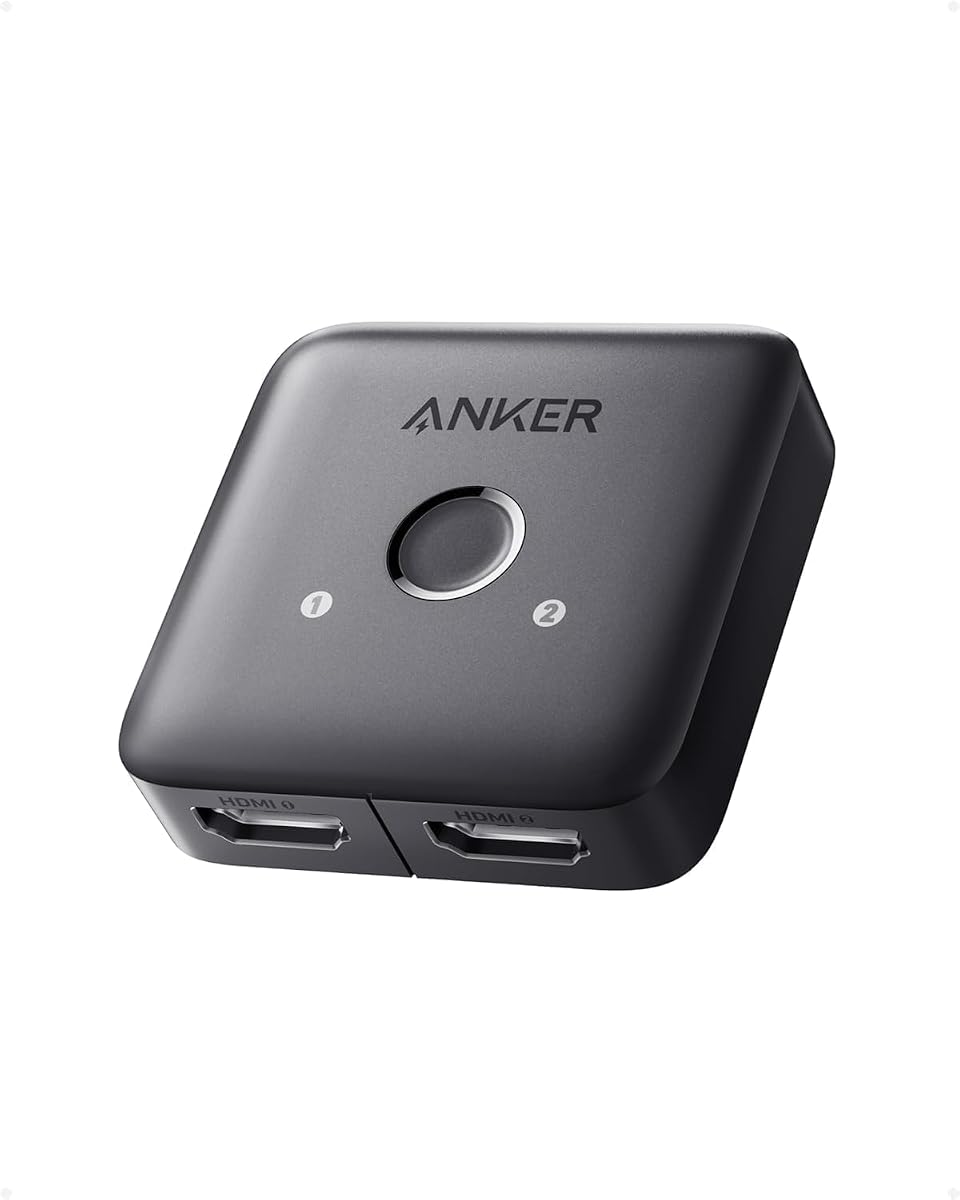
The Anker HDMI Switch is included because it solves a different problem from the other adapters in this guide. Instead of converting one connector format into another, it lets a user choose between two HDMI sources and send the selected signal to one HDMI display. Its 4.4 rating reflects a clear, convenient design for desks with a laptop and another device.
We may earn a commission when you buy through this link, at no additional cost to you.
A single front button changes the active source, reducing the need to unplug cables every time the user switches between a game console and a computer. It works with 4K at 60Hz, although the product information notes that the input and output cables should each be shorter than 3.3 feet with 30AWG for reliable 4K60 operation. The combined cable length should not exceed 6.5 feet.
There is no automatic signal detection, so switching is entirely manual. The switch supports one display at a time and cannot create a dual-display output. It also does not support HDMI CEC, meaning it cannot necessarily control other compatible devices through the HDMI connection in the way some users may expect from a fuller-featured switch.
Choose this model when a single monitor or television sits between two HDMI sources, such as a laptop and gaming console. It is not the correct choice for extending a laptop to two displays, converting DisplayPort or USB-C, or sending two separate images simultaneously. For those needs, a genuine display adapter or docking station is the better route.
The manual button allows a user to move between a game, a movie, or another source without reconnecting the display cable. That convenience makes the switch useful for entertainment setups and shared workstations.
For the advertised 4K60 mode, keep both HDMI cables short and within the specified combined length. The switch supports one output display at a time and does not provide automatic source detection.
We may earn a commission when you buy through this link, at no additional cost to you.
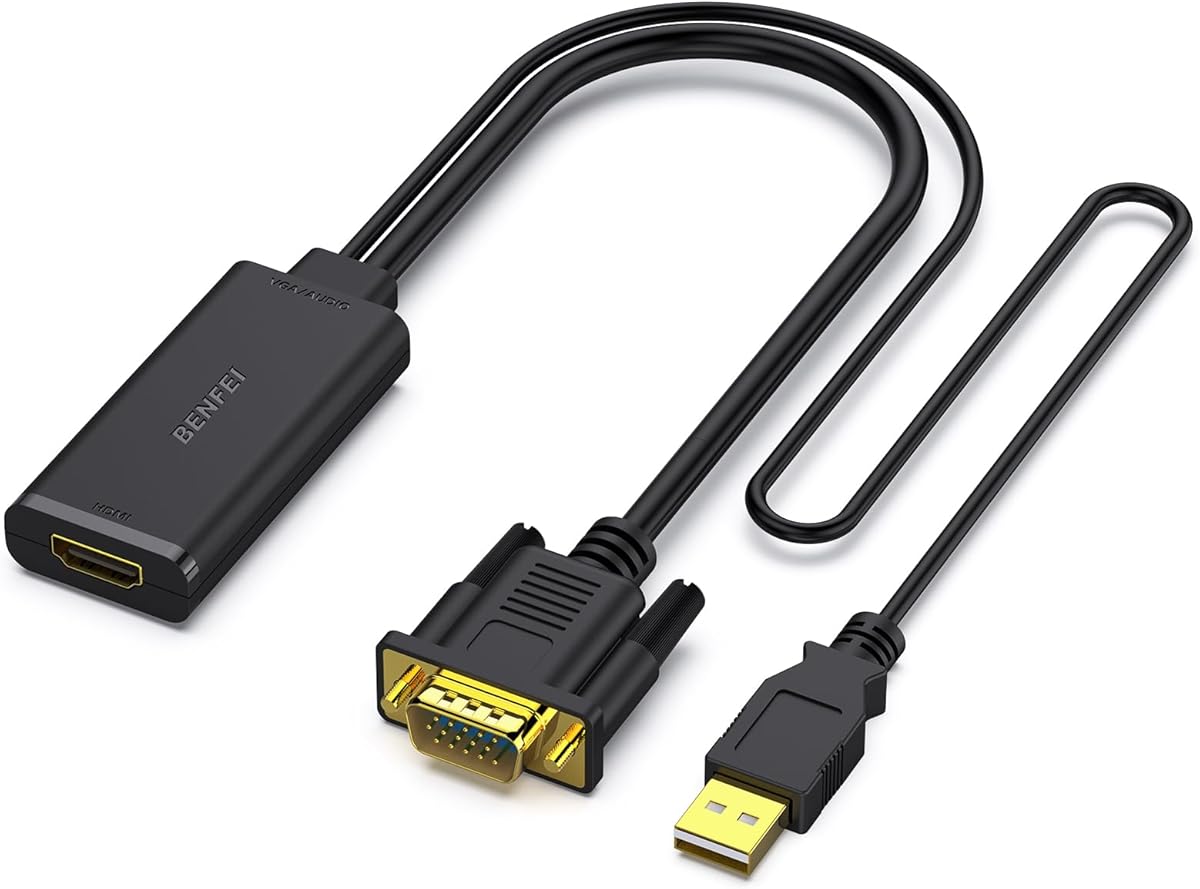
The BENFEI VGA to HDMI Adapter provides a practical path for older laptops, desktops, and presentation equipment that still have a VGA output. It converts the analog VGA signal into digital HDMI for a television, projector, or modern monitor. Its 4.5 rating reflects a well-established use case and a simple plug-and-play format.
We may earn a commission when you buy through this link, at no additional cost to you.
A built-in conversion chip handles the signal change, while an integrated USB cable allows audio to travel alongside the video. In Windows, the computer's audio output can be configured to the USB connection so the connected display receives sound. This is especially useful for legacy VGA projectors that accept HDMI but cannot access the computer's audio independently.
The adapter is strictly one-way. It works from a VGA source to an HDMI destination and cannot send HDMI from a television or other source into a VGA monitor. A separate HDMI cable is also required. As with any VGA setup, the final image quality depends on the source's resolution and analog signal, although the product is described as a 1080p converter.
This is the right pick for older office equipment, classroom systems, and presentations where the computer has VGA but the projector or television has HDMI. It is unnecessary for a modern USB-C or DisplayPort laptop unless that machine specifically includes a legacy VGA output. Confirm the connector types and decide how audio should be routed before purchasing.
The adapter makes older analog equipment usable with contemporary HDMI displays and projectors. It is particularly helpful in offices and educational spaces where legacy laptops remain in service.
The attached USB cable carries digital audio, which can then be included with the converted HDMI output. Windows users can select the USB audio device in the sound settings.
We may earn a commission when you buy through this link, at no additional cost to you.
The ABIWAZY USB C Multiport Adapter combines an HDMI output, a USB-C power port, and a USB-A port in one housing. It is intended for users who need more than a simple display converter. Its 4.4 rating reflects broad device support, simultaneous use of the included ports, and the convenience of adding charging and data connectivity through one USB-C connection.
We may earn a commission when you buy through this link, at no additional cost to you.
The HDMI port supports up to 4K at 30Hz or 1080p, while the USB-A 3.0 port offers transfer speeds up to 5Gbps and remains backward compatible with USB 2.0 devices. The Power Delivery port accepts up to 100W input and provides up to 87W output according to the product information. A compatible USB-C power supply is still required, with 65W recommended to avoid low-charge warnings.
Compatibility depends on a fully functional USB-C port that supports video output, data transfer, and the appropriate Thunderbolt or Power Delivery functions. The USB-A port can accommodate keyboards, mice, flash drives, and a single hard drive or solid-state drive, but it does not support the Apple USB Super Drive. The HDMI port does not support video output through the charging connection.
This adapter is ideal for a laptop user who wants a monitor, charging, and one peripheral without carrying a larger dock. It is less suitable when 4K60, gaming refresh rates, or multiple external displays are priorities. Users should check their laptop's port capabilities and choose a suitably capable power adapter before relying on the charging function.
HDMI, USB-A data, and USB-C power are combined in a compact aluminum adapter. That makes it useful for creating a temporary desk setup with one display, one storage device, and ongoing charging.
The charging function depends on both the laptop's USB-C port and the attached power adapter. A charger of 65W or more is recommended to reduce the chance of a low-charge warning during demanding use.
We may earn a commission when you buy through this link, at no additional cost to you.
The STSAUX Mini HDMI to HDMI Adapter is a two-pack made for devices that use the smaller Mini HDMI connector. It has a 4.7 rating, the highest among the products reviewed, and provides a direct way to connect a compatible camera, tablet, compact computer, or laptop to a standard HDMI cable.
We may earn a commission when you buy through this link, at no additional cost to you.
Its stated HDMI 2.1 capabilities include 8K at 60Hz, 4K at 144Hz, and 2K at 240Hz with backward compatibility. The 24K gold-plated connectors are intended to resist oxidation and corrosion, while the aluminum alloy housing supports heat dissipation and electromagnetic shielding. The product information states that the adapters were tested to withstand 10,000 plug-and-unplug cycles.
This adapter does not perform protocol conversion between USB-C, DisplayPort, and HDMI. It simply adapts a Mini HDMI male connector to a standard HDMI female port so a normal HDMI cable can be used. The source must have Mini HDMI rather than Micro HDMI or Micro USB, a distinction that is important because the physical shapes can be easy to confuse.
The pack is especially useful for users with more than one Mini HDMI device or who want a spare adapter available in different bags. It works with listed devices such as supported camcorders, cameras, tablets, Raspberry Pi Zero models, and select laptops. For standard laptop HDMI ports, this is unnecessary; choose it only when a genuine Mini HDMI source is present.
The stated support for 8K60, 4K144, and 2K240 makes this adapter suited to compatible high-resolution displays and source equipment. Actual output remains dependent on the capabilities of the connected laptop, camera, tablet, and display.
The two-pack allows simultaneous connections to separate Mini HDMI devices or provides a backup. Its compact housing fits readily into camera bags, pockets, and mobile presentation kits.
We may earn a commission when you buy through this link, at no additional cost to you.
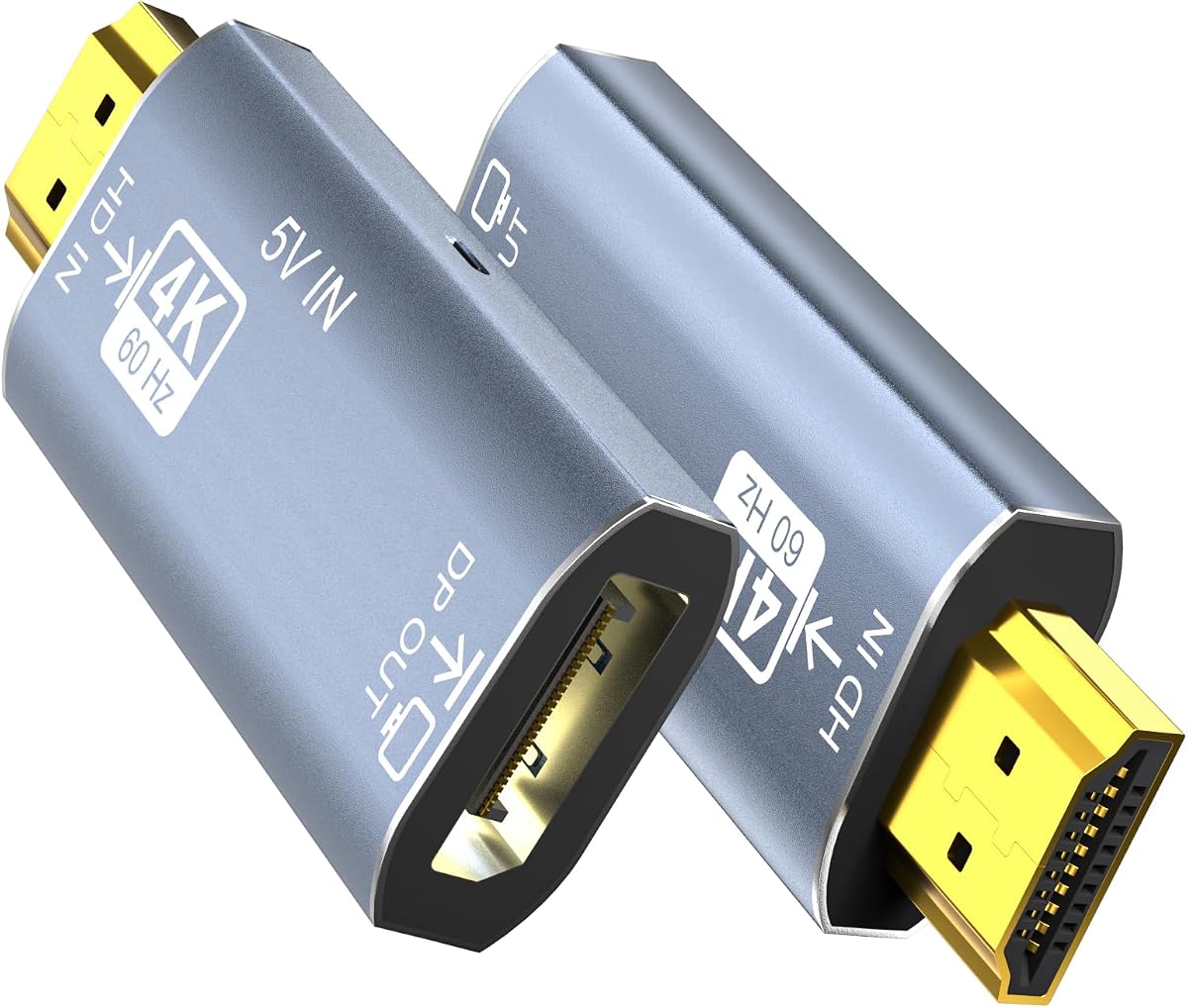
The BENFEI HDMI to DisplayPort Adapter is designed for an HDMI source and a DisplayPort destination, a direction that many adapters do not support. Its 4.3 rating reflects a feature-rich conversion approach suited to modern laptops, game consoles, desktop computers, and other HDMI-equipped hardware.
We may earn a commission when you buy through this link, at no additional cost to you.
The adapter accepts HDMI 2.0b and outputs DisplayPort 1.4. Stated resolution modes include 3840 by 2160 at 60Hz, 2K at 144Hz and 120Hz, and 1080p at 165Hz, 144Hz, and 120Hz. It also supports HBR2, HDCP 1.4 and 2.3, and eight-channel digital audio with sampling rates up to 192kHz and sample sizes up to 24 bits.
An external USB power connection is required to provide sufficient voltage to the conversion chipset. That requirement adds a cable and power source to the setup, but it also supports more consistent conversion performance. The adapter remains unidirectional, so it cannot accept DisplayPort from a graphics card and transmit that signal to an HDMI television.
This is a strong choice for an HDMI laptop that must drive a DisplayPort monitor, particularly when the display offers a high refresh rate. It also serves compatible gaming consoles and set-top devices. Users should plan for the external power connection, verify that the source is HDMI, and avoid treating it as a universal DisplayPort-to-HDMI adapter.
Most simple adapters convert DisplayPort output to HDMI input. This model performs the opposite conversion, making it useful when the source has HDMI but the chosen monitor accepts DisplayPort.
Support extends from 4K60 to 2K144 and several 1080p high-refresh modes. Eight-channel digital audio and advanced bandwidth features make it more versatile for capable consoles and computers.
We may earn a commission when you buy through this link, at no additional cost to you.
The Active HDMI to DisplayPort Adapter is built for users who need to send an HDMI source to a DisplayPort display while adding an extra screen to a home-office arrangement. Its 4.0 rating reflects a functional active-conversion design with broad operating-system support, although it has more setup requirements than a passive adapter.
We may earn a commission when you buy through this link, at no additional cost to you.
The unit uses an active conversion chip and supports 4K at 60Hz and 1080p at 120Hz. Its hardware-level operation means no software or driver installation is required on Windows, macOS, or Linux. The product is presented for professional displays, office expansion, presentations, console connections, and other multi-screen workflows.
The included USB power cable must be connected to a 5V, 1A source before use. The HDMI source should be connected directly without intermediate extension cables or switchers, as those additions can contribute to black-screen or no-signal problems. The adapter does not support HDR or VRR, including G-Sync, and the final refresh rate also depends on the source and display.
This converter is most appropriate for an HDMI-output laptop or compact computer paired with a DisplayPort monitor. It is also compatible with listed consoles, docks, capture devices, and streaming players. It is not ideal for users who need HDR, adaptive synchronization, or a completely cable-free setup because the external power lead is mandatory.
Unlike a passive display adapter, the active chip performs real signal translation between HDMI and DisplayPort. This makes it relevant for systems where source and display standards do not naturally match.
For the best chance of stable operation, connect the HDMI source directly and provide the required 5V power. Avoid extension cables and intermediate switchers when troubleshooting a missing or unstable signal.
We may earn a commission when you buy through this link, at no additional cost to you.
The right laptop video adapter depends on the source connector, destination display, required signal direction, resolution, refresh rate, power needs, and portability. Confirming those details before shopping prevents the most common problems involving unusable ports, reversed signals, and unsupported display modes.
Choose an adapter that starts with the connector your laptop actually has, rather than a universal-looking option whose other ports may be decorative or limited.
Match the adapter's stated source-to-destination direction to your equipment, and never assume it works in reverse.
For most office displays, 1080p60 is sufficient. Choose 4K60 for smooth high-resolution productivity and modern media, and consider higher refresh rates only when both the laptop and monitor support them.
Check the adapter's audio format, HDCP requirements, HDR capability, and refresh-rate support separately when those features matter.
Factor the need for an extra cable and power source into portability, especially when presenting away from a desk.
For a single-monitor setup, a simple converter may be easier. Choose a multiport hub when you also need charging or peripheral connectivity.
For frequent travel, favor a small housing, short cable, and reinforced connection points; for stationary use, focus primarily on signal compatibility.
Check cable specifications before purchasing, because the adapter's maximum resolution cannot overcome an unsuitable or overly long cable.
Confirm the source connector and video capability before connecting anything. For USB-C, look for DP Alt Mode, Thunderbolt, or USB4 video support in the laptop specifications. For DisplayPort and HDMI-to-DisplayPort adapters, verify the required source-to-destination direction. Connect the adapter to the laptop first, then attach a suitable HDMI cable between the adapter and the television, projector, or monitor.
Choose the display mode in the operating system's display settings after connecting the equipment. Mirror the laptop and external display for presentations or shared viewing, and extend the desktop for more workspace. Windows users of the VGA-to-HDMI adapter should select its USB audio connection in the sound settings. If the output is blank, try a direct connection, confirm the display has selected the correct input, and reconnect the adapter with the laptop powered down.
Protect the connection by pulling the plug rather than the cable and pressing any latch release before removing a locking DisplayPort connector. Avoid sharply bending the cable near the housing, and keep active converters connected to their required USB power during use. Store the adapter in a small pouch, inspect connectors for debris, and avoid pulling a connected adapter sideways while it is supporting the weight of a display cable.
It is a compact converter or connector adapter that lets a laptop send display output to a screen with a different type of port. Depending on the model, it may convert USB-C to HDMI, DisplayPort to HDMI, VGA to HDMI, Mini HDMI to HDMI, or HDMI to DisplayPort. It does not add HDMI input capability to a laptop.
No. The USB-C port must support DisplayPort Alt Mode, Thunderbolt, or another compatible video-output standard. Many USB-C ports handle data or charging only, so they cannot display video through an HDMI adapter. Check the laptop specifications or manufacturer documentation before buying.
Most DisplayPort-to-HDMI adapters are unidirectional. They accept DisplayPort from a laptop and send HDMI to a display, but cannot take an HDMI source and transmit DisplayPort to a monitor. A dedicated HDMI-to-DisplayPort active adapter is required for the opposite direction.
The two HDMI-to-DisplayPort options in this guide require an external USB power connection for the conversion chipset. The BENFEI model calls for sufficient external power, while the Active HDMI to DisplayPort adapter specifically calls for 5V, 1A. Supplying that connection can improve conversion reliability and reduce no-signal issues.
Usually, yes, because a higher-capable source can generally communicate with a lower-resolution display at a supported mode. The adapter and display may negotiate 1080p rather than 4K. Verify that the monitor includes an HDMI input and select the correct resolution in the laptop's display settings.
Simple USB-C-to-HDMI adapters generally do not provide charging or Power Delivery. The Anker and Highwings models explicitly exclude charging. The ABIWAZY multiport adapter includes a USB-C Power Delivery port, but it requires a compatible laptop port and a suitable external power adapter.
No. Mini HDMI and Micro HDMI use different connector shapes and are not interchangeable. The STSAUX adapter accepts a Mini HDMI source and provides a full-size HDMI female connection. Check the device markings or manual carefully because the two formats are easy to confuse.
Keep the cable within the adapter manufacturer's recommended limits. Highwings recommends a High Speed HDMI cable no longer than 15 feet for stable 4K output, while the Anker switch has shorter cable guidance for guaranteed 4K60. Longer or lower-quality cables can lead to instability, signal loss, or an unexpected resolution.
The Anker USB C to HDMI Adapter is the strongest general recommendation for a modern USB-C laptop because it combines 4K60 support, broad video-compatible connection standards, and a durable, driver-free design. Moread's DisplayPort-to-HDMI adapter stands out as the best value option, while BENFEI's HDMI-to-DisplayPort converter offers the most elaborate feature set for users needing a less common signal direction.
Prioritize exact connector compatibility, source-to-destination direction, and the required display mode before considering any other feature. The right adapter for a 1080p office projector may be very different from one chosen for 4K60 desktop work, high-refresh gaming, or connecting an HDMI laptop to a DisplayPort monitor. Power requirements, audio handling, and compatible cables should also be included in the decision.
Current pricing, availability, and product details can change over time, so verify the latest specifications and customer feedback before making a final purchase. Once the laptop's output capability and display's input are confirmed, selecting the correct directional adapter should produce a simple and dependable connection.
