
XPPen Mini Keydial ACK05
4.3Editor score
Ten customizable shortcut keys
Click-detented adjustment dial
Three connection options
Discover the best iPad Drawing Bluetooth Controller options, comparing shortcut keys, dials, software support, portability, and battery life for artists.
An iPad drawing Bluetooth controller can make digital artwork faster and more comfortable by placing familiar commands, adjustment dials, and other controls within easy reach. The right accessory depends heavily on your drawing software, device compatibility, preferred workflow, and whether you need a dedicated Procreate keypad or a more versatile creative controller.
This guide compares ten products based on their documented connectivity, shortcut controls, supported software, battery life, portability, and iPad relevance. It covers dedicated iPad shortcut keyboards, programmable creative remotes, presentation controllers, gaming controllers, and a drawing tablet so readers can distinguish purpose-built tools from broader alternatives.
Each review explains the product's strongest attributes, limitations, and ideal user, while the comparison table makes differences easier to scan. Ratings and specifications reflect the supplied product information. Product availability and prices can change, so readers should confirm current details and compatibility before purchasing.
4.3Editor score
4.5Editor score

4.4Editor score
The comparison includes dedicated drawing keypads, programmable creative controllers, a presentation remote, a game controller, a tablet-focused game controller, and a pen tablet. The wide range illustrates why iPad compatibility, software support, and intended drawing workflow deserve careful consideration before choosing.


The HUION Keydial Mini is a broad-purpose programmable keypad built for creative shortcuts, and its 4.2 rating reflects a solid combination of useful controls and flexibility. It combines 18 programmable keys with a dial that can be assigned to three functions, giving iPad artists a more substantial command surface than a minimal remote.
We may earn a commission when you buy through this link, at no additional cost to you.
Its strongest feature is the combination of dedicated buttons and continuous adjustment. Shortcuts can be changed through the Huion driver, while the dial is suited to brush-size changes, timeline navigation, and other adjustable tasks. The anti-ghosting system supports simultaneous input from as many as five keys, which is useful for complex shortcut combinations. A setting-preview function can display the current assignment of each control and lets users rename buttons, reducing the need to memorize an unfamiliar layout.
There are important compatibility caveats. The listed operating-system support centers on Mac and Windows, including Surface Pro, and the product is described as compatible with many graphics tablets and creative applications. Procreate custom shortcuts depend on support within the drawing software, and users should verify that the relevant Procreate version accepts the desired assignments. The dial and key customization also require the Huion driver, so the controller is not a simple tap-and-go accessory for every iPad workflow.
The Keydial Mini is best for artists who want more keys than a basic remote, need a dial for fluid adjustments, and work across image editing, illustration, video, or other supported software. Its thin, light housing, 70-hour battery life, and support for both right- and left-handed users make it a practical creative companion. Among general-purpose options, it offers the strongest balance of key count, programmability, and battery endurance.
Eighteen programmable keys give the Keydial Mini more room for brush, layer, selection, and navigation commands than minimalist controllers. The preview function helps users confirm assignments and personalize labels, reducing friction when moving between creative applications.
The dial can be configured for up to three functions, making it useful for changes such as brush size, zoom, or timeline movement. Its compact, one-handed form keeps frequently used adjustments close to the drawing hand.
We may earn a commission when you buy through this link, at no additional cost to you.
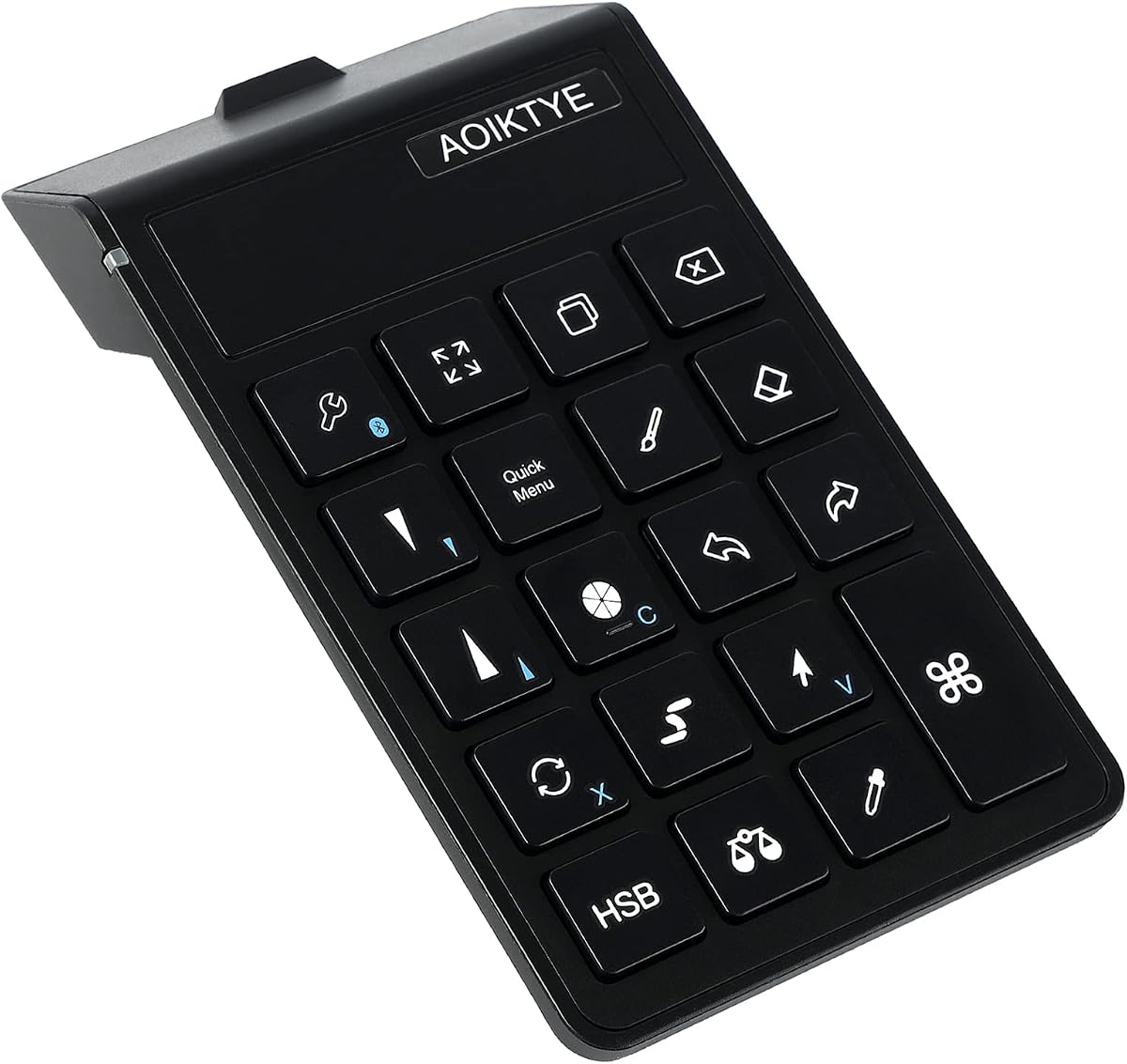
The AOIKTYE Procreate Keyboard 2 is one of the most directly relevant products in this guide, earning a 4.5 rating and focusing on a familiar problem: reducing menu diving while drawing on an iPad. Its dedicated layout contains more than 20 shortcut functions covering actions such as color selection, HSB or color-balance adjustments, cutting, copying, pasting, undo, and brush-size control.
We may earn a commission when you buy through this link, at no additional cost to you.
The second-generation design is especially relevant for artists accustomed to using a conventional keyboard while drawing. Frequently used keys were repositioned for better access, a remove-layer control was added, and the overall key height was improved for ergonomics. The result is a left-hand command keyboard designed to work while the right hand remains on the Apple Pencil or finger.
Its trade-off is specialization. Although several functions are also described as suitable for Painter, Illustrator, SAI, Clip Studio Paint, and Photoshop, the product was designed specifically around Procreate. It is therefore most attractive to artists who spend most of their drawing time in that application. Software versions and shortcut support should be checked before assigning frequently used commands.
The built-in 250mAh rechargeable lithium-ion battery takes about two hours to charge and provides up to 84 hours of continuous use, with more than six months of standby. Bluetooth operation reaches up to 10 meters according to the product information. For a Procreate specialist who wants a simple, purpose-built command surface without paying for a large general creative controller, this is an especially coherent choice.
The controller places more than 20 useful drawing functions on dedicated keys, including color, layer, editing, undo, and brush controls. That focus can remove repeated trips into menus and help maintain a smoother drawing rhythm.
Its low-profile, left-hand orientation complements right-hand drawing on an iPad. The improved second-generation key height and more accessible placement of common commands support longer creative sessions.
We may earn a commission when you buy through this link, at no additional cost to you.
The ShanWan Q37 Pro is a portable Bluetooth game controller that also advertises keyboard, mouse, and drawing control, making it a broad alternative for users who move between creative and gaming tasks. Its 3.4 rating is the lowest among the listed products, so buyers should treat the advertised feature set as the main reason to consider it rather than expecting a dedicated digital-art keypad.
We may earn a commission when you buy through this link, at no additional cost to you.
The standard game layout provides analog sticks, triggers, and buttons that may appeal to artists accustomed to controller-based input. Custom button mapping is the key creative feature, potentially allowing actions to be assigned around a user's software. Its broad platform list includes iPhone, iPad, Android tablets, PC, PlayStation, and Switch 2, while the supplied information also describes wireless connectivity and a rechargeable battery.
The main uncertainty is documentation. Unlike the Procreate keyboard, XPPen, HUION, and TourBox, the product information does not name specific illustration or editing applications or describe software-specific shortcut presets. It also provides fewer battery-life details than the specialized creative controllers. iPad users would need to confirm how the controller presents itself to their chosen app and whether pointer or drawing functions behave as expected.
This controller makes the most sense for an artist who wants one handheld accessory for drawing experiments, general device control, and games. It is less compelling as a dedicated shortcut pad, but its familiar physical controls and custom mapping offer a different approach to reducing touchscreen dependency.
Analog sticks, triggers, and familiar game buttons provide an alternative to tapping miniature shortcut keys. Custom mapping can make this layout useful for apps that accept programmable controller input.
Compatibility with phones, tablets, PCs, consoles, and Switch 2 broadens the Q37 Pro's appeal. It suits users who want one portable controller for drawing, navigation, and entertainment.
We may earn a commission when you buy through this link, at no additional cost to you.
The TNP iPad Remote Control is designed primarily for navigation and presentation control rather than drawing, but it earns a place in this comparison because its trackpad, directional controls, and Home button can reduce some reliance on touchscreen gestures. It carries a 3.6 rating and supports Bluetooth 5.0 across a broad collection of devices.
We may earn a commission when you buy through this link, at no additional cost to you.
Its trackpad moves the cursor on iPhone and iPad screens, and the included Home button supports app switching and Siri on compatible iOS systems. Four-way arrows can navigate PowerPoint and Keynote, while media controls manage playback, volume, and track movement. The same device can also act as a wireless camera shutter, which adds value for artists recording reference footage or monitoring a presentation.
For digital drawing, the absence of dedicated shortcut keys and an adjustment dial is decisive. The controller does not offer app-specific mappings for Procreate, Photoshop, or other creative tools in the supplied information. Apple operating systems also impose compatibility rules, so the product description's system requirements should be checked for the exact iPad and iPadOS version in use.
The TNP remote is best for an iPad artist who needs occasional navigation, media, presentation, or camera functions alongside a stylus. It can be useful in a desk setup where touching the display interrupts a presentation or causes smudges, but a true shortcut keypad is a more direct choice for intensive drawing.
The trackpad supports pointer movement and swiping, offering a desktop-like way to navigate an iPad interface. It is especially useful for media review, slides, and light interface tasks.
Media keys, directional arrows, a Home button, and camera-shutter control cover several common tasks. That versatility makes the remote a useful desk companion even when it is not a primary drawing tool.
We may earn a commission when you buy through this link, at no additional cost to you.
The XPPen Mini Keydial ACK05 combines programmable keys, a detented adjustment dial, and flexible connectivity in a compact 75-gram housing. Its 4.3 rating makes it a strong all-around creative remote, and the broad selection of controls gives it more capability than a basic presentation clicker.
We may earn a commission when you buy through this link, at no additional cost to you.
Ten physical keys can be organized into four configurable sets containing up to 40 shortcuts in total. A single button switches between sets, allowing different workflows or applications to be represented without crowding the device. The dial produces a click every 1/24 rotation, providing tactile confirmation while adjusting zoom, canvas position, or brush size. Anti-ghosting for all ten keys supports multi-key input.
Connectivity is a major strength. The ACK05 can use direct Bluetooth 5.0, a Bluetooth dongle, or a USB cable. The supplied information says direct Bluetooth works with Windows 10 or later and macOS 10.10 or later, while the wired and dongle options also support Linux and earlier compatible Windows versions. On iPad or iOS, users must install the Shortcut Remote app; without the driver, it functions only as a regular shortcut keyboard.
This is a good budget choice for illustrators who want a dial, presets, and customizable keys without choosing a larger premium controller. The 1000mAh battery provides approximately 300 hours of continuous operation, and the understated design suits both travel and a fixed workspace. Buyers should still verify their intended app supports the relevant shortcut features.
Up to 40 configurable shortcuts are divided among four sets. This makes it easy to keep separate collections for drawing, editing, navigation, or other recurring tasks.
Bluetooth, dongle, and wired modes support different computer setups and can provide a useful fallback when wireless conditions are less than ideal. iPad users should install the specified app before programming the controls.
We may earn a commission when you buy through this link, at no additional cost to you.
The DIGIDRAW K30 stands out through its dual-dial design, 11 custom keys, and tactile positioning markers. Its perfect 5.0 rating reflects an attractive documented feature set, although that rating should not be interpreted as the result of a personal hands-on test.
We may earn a commission when you buy through this link, at no additional cost to you.
Two dials provide more adjustment options than a single-dial controller and can be used for tasks such as brush sizing, zoom, and other value changes. Eleven programmable keys add direct access to commands such as undo and layer switching. Raised markers on the keys allow users to identify controls by touch, which supports eyes-on-canvas working and reduces the need to look down at the device.
The K30 weighs 82 grams and is designed for one-handed use. Connectivity is offered through Bluetooth 5.0 or USB-C, and the product includes a dual-device switching feature. Its 600mAh battery is stated to provide 40 hours of continuous use and up to 10 months of standby, with USB-C charging for replenishment.
The supplied compatibility information specifically names Photoshop, Sai, CorelDRAW, and other creative software, but does not explicitly outline iPadOS setup. Buyers should visit the official website for the latest driver and verify that the desired app and iPad configuration are supported. The K30 is best for an artist who prioritizes two dials and blind-operation features over a large number of programmable keys.
A pair of dials gives artists room to keep two frequently adjusted values under separate control. This can streamline tasks that would otherwise require repeated switch and adjustment steps.
Raised markers make the 11 keys easier to locate by feel. The feature supports a more continuous workflow by reducing the need to visually reacquire each button.
We may earn a commission when you buy through this link, at no additional cost to you.
The TourBox Lite Bluetooth is a refined creative controller with an eight-key layout, a knob, a wheel, and raised buttons. Its 4.4 rating and app-aware preset system position it as the premium choice for users who want a broader creative control surface with minimal setup between applications.
We may earn a commission when you buy through this link, at no additional cost to you.
TourBox Console can detect the active application and switch to relevant built-in presets. Its on-screen heads-up display shows customized controls in real time, reducing the learning burden associated with memorizing shortcuts. Users can assign common combinations and functions, then adjust brushes, layers, timelines, colors, windows, and pages through the physical controls.
The most significant caveat for this keyword is platform support. The supplied information states that the wireless version works with macOS, Windows PCs, and Windows tablets, and it does not list iPadOS among the compatible systems. As a result, an iPad artist should not assume that it can serve as a Procreate controller without confirmation. Its broad creative app list includes Clip Studio Paint, SAI, MediBang, Corel Painter, Krita, Photoshop, Lightroom Classic, Illustrator, Premiere Pro, FCP, and Filmora.
For an artist working primarily on a Mac or Windows computer, TourBox Lite offers the most polished creative-controller experience in this list. It is also a strong choice for Windows tablet users. iPad users interested in a similar concept should prioritize devices with explicitly documented iPad support, such as the ACK05 or the dedicated Procreate keyboard.
The console detects the active app and presents a suitable setup, reducing the work required to reconfigure controls for each project. Real-time on-screen guidance makes customization easier to understand.
A knob, wheel, and raised buttons create several ways to adjust common creative values. Their tactile feedback is designed to support confident, eyes-on-canvas operation during extended work.
We may earn a commission when you buy through this link, at no additional cost to you.
The Modded Tablet Controller G8 PLUS is a substantial Bluetooth gaming controller designed to hold tablets and phones, with particularly broad iPad compatibility. Its 5.0 rating makes it an impressive choice for mobile gaming, but it is not a shortcut keypad for Procreate and should be evaluated as a different category of accessory.
We may earn a commission when you buy through this link, at no additional cost to you.
Its strengths are physical input quality and versatility. Hall-effect sticks and triggers provide precise control, while a 6-axis gyroscope supports motion-oriented games. Dual motors provide strong and subtle vibration feedback, and magnetic interchangeable parts allow some personalization of the setup. An extendable design supports many phones and tablets, with several holder options available separately.
The listed iPad compatibility includes current and earlier Air, Pro, and standard iPad models, along with numerous Galaxy Tab, Xiaomi Pad, Lenovo, Huawei, Surface, HP, Acer, and Amazon Fire tablets. Some compact PCs require separately sold holders, and any phone with a height below 9.4 inches requires the phone holder. These details matter because a controller is only comfortable when the device is positioned correctly.
For an iPad drawing workflow, the G8 PLUS offers no documented application shortcuts, dial, or pen-control integration. It is best recommended to tablet gamers and artists who want a console-style controller for interactive applications. The product's strong compatibility list and durable control hardware do not change its primary gaming orientation.
Console-size sticks, triggers, vibration, and motion sensing create a familiar and capable gaming layout. The extendable holder system positions different tablet sizes more consistently.
The compatibility list covers many iPad generations and numerous Android, Windows, and tablet ecosystems. Buyers should still check the model list and determine whether a separate holder is required.
We may earn a commission when you buy through this link, at no additional cost to you.
The Clip Studio Tabmate 2 is a purpose-built shortcut device for Clip Studio Paint, and its 4.0 rating reflects a focused proposition with clear software integration. It supports iPadOS and iOS directly, making it one of the most obviously relevant choices for an artist who draws in Clip Studio Paint on an iPad.
We may earn a commission when you buy through this link, at no additional cost to you.
Frequently used operations can be assigned to individual buttons, reducing menu navigation during illustration, inking, coloring, and other production tasks. The device communicates through Bluetooth Low Energy 5.1 and works with iPadOS 16 and 17, iOS 16 and 17, Android 11 and later, 64-bit Windows 10 and 11, and macOS 12, 13, and 14.
The key limitation is software scope. It supports Clip Studio Paint version 3.0 and later but is not compatible with versions 1 or 2. Artists who use several programs may find the device less flexible than a general programmable keypad, though the included Clip Studio Paint Debut single-device 12-month license can provide a starting point for the supported application.
The Tabmate 2 uses AA batteries, which are not included, so replacements should be planned. Despite that minor inconvenience, it is an excellent match for an iPad artist committed to Clip Studio Paint who values a compact, official shortcut device over a multi-program creative console.
Button assignments are designed around a supported version of Clip Studio Paint. This focused compatibility removes much of the uncertainty involved with generic programmable remotes.
The handheld format makes commonly used operations accessible while the artist focuses on the canvas. It is particularly useful for repeated layer, tool, and editing actions during production work.
We may earn a commission when you buy through this link, at no additional cost to you.
The Wacom Intuos Small is not an iPad shortcut controller; it is a compact Bluetooth graphics tablet with a pressure-sensitive pen. Its 4.4 rating and established drawing-tablet focus make it an important alternative for artists who want a dedicated digital drawing surface rather than an accessory that controls an existing iPad display.
We may earn a commission when you buy through this link, at no additional cost to you.
Its EMR technology is battery free and is designed to provide precise, pen-on-paper feel with pressure sensitivity. The tablet can be used for drawing, painting, photo and video editing, design, and document markup across a wide range of software. Connectivity is flexible, with both wireless Bluetooth and a direct USB-A connection.
The limitation for this keyword is fundamental: the Intuos does not provide programmable shortcut keys, dials, or a Home button, and it is not described as controlling an iPad screen. It is a separate input device for a compatible computer. Buyers searching specifically for an iPad drawing controller should not mistake pen-tablet functionality for shortcut or media control.
Wacom is best recommended to an artist who wants a compact dedicated drawing tablet and values a familiar, widely supported input method. Its small size makes it portable, while included software and online training help new users begin. The bundle may be less relevant than a shortcut keypad for iPad artists, but it remains a strong choice for computer-based creation.
Battery-free EMR technology is designed to emulate the feel of pen on paper. Pressure sensitivity supports expressive line weight and tonal variation across drawing and painting software.
Bluetooth allows a cable-free desktop, while the USB-A option provides a direct connection. The flexibility supports different locations and creative setups.
We may earn a commission when you buy through this link, at no additional cost to you.
The best iPad drawing Bluetooth controller depends on whether you need Procreate shortcuts, general creative programmability, continuous adjustments, or simply a more convenient way to navigate the tablet. Compatibility and intended workflow should be evaluated before key count or appearance.
Software support is more important than the number of buttons. Choose a model whose documented functions match the commands you use every day.
Verify iPadOS support, Bluetooth compatibility, and required setup software before ordering.
Prioritize controllers that make assignments easy to understand, preview, and change.
Choose one or two dials when continuous value changes are central to your creative process.
Compare active-use duration, standby time, charging convenience, and included battery hardware.
Match size, weight, and hand orientation to your drawing posture and mobile use.
Check wireless mode, documented range, and available wired fallback for your setup.
Prioritize tactile, clearly identifiable controls that support the commands you use most often.
Begin by fully charging the controller, installing any required driver or companion app, and pairing it over Bluetooth. For iPad-specific models, open the instructions supplied by the manufacturer and complete the app-based setup before attempting to assign shortcuts. Confirm that the iPad recognizes the device and that the target drawing application responds to basic commands.
Assign only the commands you use most often. Start with brush size, zoom, color-related actions, undo, and layer functions, then add less common operations as the layout becomes familiar. Use the setting-preview feature where available, and test the layout in the actual drawing application because software versions can change which shortcuts are recognized. Keep the controller within comfortable reach and avoid placing it where it may be pressed accidentally.
Clean the controls gently with a dry or lightly dampened soft cloth, and avoid abrasive cleaners or moisture around openings and charging contacts. Recharge rechargeable models as needed and store them in a dry environment. If a controller uses replaceable batteries, follow the battery guidance in its manual. Periodic software and driver updates can improve compatibility, so check the official source when a command stops working.
The AOIKTYE Procreate Keyboard 2 is the most directly focused option because it was designed around Procreate and places more than 20 drawing-related functions on dedicated keys. The XPPen ACK05 is a more flexible alternative if you also want a dial and multiple programmable shortcut sets. Confirm the Procreate version and software support before purchasing either device.
No. Bluetooth support does not automatically mean that a controller supports iPadOS or its drawing software. The ACK05 provides explicit iPad and iOS setup instructions, while TourBox Lite's listed compatibility is centered on macOS and Windows. Always check the system requirements, Bluetooth mode, and any required companion app before ordering.
A shortcut keypad controls commands in software that is already running, often providing buttons and dials for brush, layer, zoom, and undo functions. A drawing tablet provides a separate pressure-sensitive surface and pen for entering artwork. The Wacom Intuos Small in this guide is a drawing tablet, not an iPad shortcut controller.
Yes, especially when you repeatedly adjust brush size, zoom, opacity, or canvas position. A dial allows continuous changes with fewer taps and can be faster than a button that opens a menu. The HUION, XPPen, DIGIDRAW, and TourBox options provide different combinations of dial, knob, and wheel controls.
It depends on the model and the customization features you want. The HUION Keydial Mini requires the Huion driver for custom shortcuts, and the ACK05 requires its driver plus the Shortcut Remote app on iPad. TourBox uses TourBox Console for presets and customization, while dedicated devices such as the Tabmate 2 provide a more focused, application-specific setup.
The TNP iPad Remote Control is designed for presentations, offering a trackpad, directional controls, a Home button, and media functions. Creative controllers can also navigate software, but a presentation remote is usually better when the main needs are slide movement, app switching, playback, and pointer control rather than drawing shortcuts.
They can be useful in apps that accept programmable controller input, but they are not conventional drawing keypads. The ShanWan Q37 Pro supports custom mapping and iPad connectivity, while the G8 PLUS is optimized for gaming. Neither is documented as providing a Procreate-specific layout, so confirm app-level controller support before making it your primary drawing accessory.
The useful measure is active-use time rather than standby time. Products in this guide list active-use figures from about 40 hours to roughly 300 hours, while the Procreate keyboard also provides extended standby. Actual runtime can vary with connection method, use, and settings, so check the current manufacturer information before relying on a specific session length.
The AOIKTYE Procreate Keyboard 2 is the strongest recommendation for an iPad artist who primarily uses Procreate and wants a large set of relevant commands on a dedicated keypad. The XPPen ACK05 is the best budget option because it combines a dial, several shortcut sets, multiple connection methods, and very long battery life. TourBox Lite stands as the premium creative controller for Mac and Windows workflows, though buyers should confirm whether it supports their specific iPad environment.
The right priority depends on the work. Procreate specialists should begin with explicit app support, general creative artists should consider programmable dials and presets, and tablet gamers should look at physical controls and fit rather than shortcut capacity. Avoid choosing a game controller or presentation remote as a primary drawing aid unless your app explicitly supports the inputs it provides.
Finally, check the latest iPadOS requirements, supported drawing-software version, driver availability, charging method, and current product price before purchasing. Prices and compatibility details can change, and features that appear identical in a product listing may behave differently across operating systems and creative applications.