
Wacom Intuos Small
4.6Editor score
Battery-free EMR pen
Compact wired design
Broad creative software support
A signature pad for a laptop turns handwritten approvals into digital records, but the strongest choice depends on the screen, software, operating system, and signing environment. A dedicated signature display can improve document visibility and workflow control, while a compact graphics tablet may offer a more flexible and economical way to add signatures to everyday computer tasks.
We compared all ten products by examining their documented displays, active areas, pen technology, USB or wired connections, operating-system support, included software, signature tools, portability, and suitability for common office workflows. The list includes dedicated electronic signature pads as well as general drawing tablets that can handle document annotation, online meetings, and basic signing tasks.
Each review explains what the product is best suited for, where it stands out, and where its limitations matter. Ratings reflect the supplied customer feedback, while the recommendations also consider the usefulness of the stated specifications. Product availability and pricing can change, so confirm current details and software requirements before purchasing.
4.6Editor score

3.2Editor score
4.9Editor score
As an Amazon Associate we earn from qualifying purchases.
The comparison below covers dedicated signature devices and flexible graphics tablets, highlighting their display styles, pen systems, supported environments, and most practical signing use cases.


The HavaPen YZ04 is a 6-by-4-inch LCD signature tablet aimed at office, finance, healthcare, government, and other document-based environments. Its 3.6 rating reflects mixed customer feedback, but the documented feature set is unusually broad for a signing tablet. It can show the written signature on its own display and on the computer screen, which is useful when a signer needs immediate visual confirmation.
We may earn a commission when you buy through this link, at no additional cost to you.
Its defining advantage is the battery-free YP10 pen. Because the stylus needs no charging, it supports uninterrupted signing without creating another device to maintain. The tablet also offers 8192 levels of pressure sensitivity, allowing smoother variation in line weight than a basic passive writing surface, while the included nibs make it practical to maintain the writing experience over time.
Compatibility is a strength because the supplied information specifically calls out Microsoft Word, PowerPoint, OneNote, Zoom, and Xsplit, along with PDF, Excel, and WPS workflows. A secondary-development kit is also indicated for organizations connecting the device to an office or OA system. The trade-off is that a 3.6 rating suggests some buyers may have encountered setup, software, or workflow issues that are not visible in the specifications alone.
This is a good choice for a laptop user who wants more than basic mouse replacement and values visible signature feedback, pen control, and integration potential. It is less suitable for Mac-centered workflows unless compatibility is confirmed directly. The strongest reason to consider it is its combination of an LCD, an always-ready passive pen, and an explicit development kit for specialized business systems.
Because the signature appears on the tablet display as well as the computer, the signer can confirm placement and appearance without relying entirely on the application preview. This is particularly useful when a document or form provides a specific signing area.
The battery-free YP10 stylus eliminates charging interruptions. Its 8192 pressure levels also support finer expression, making the device useful for handwritten notes and document markup as well as formal signatures.
We may earn a commission when you buy through this link, at no additional cost to you.
The SMAJAYU FP430S is a dedicated electronic signature pad with a 4.3-inch color LCD, integrated backlighting, USB connectivity, and a stylus. Its 2.7 rating is the second-lowest among the products reviewed, so buyers should scrutinize software expectations and compatibility. The hardware is clearly designed for a structured signing workflow rather than general creative input.
We may earn a commission when you buy through this link, at no additional cost to you.
Three software options are identified in the supplied information. SMAJAYU document(s) Signer handles digital signatures in PDF, Word, and Excel files, saving completed documents as PDFs. A separate demo tool extracts a signature image for placement in edited Excel or Word files. The 430S SDK is available for programmable platforms such as websites and applications, with support available from the manufacturer.
The main limitation is platform dependence. The pad and signer utility support Windows 7, 8, 10, and 11, but they do not support Apple computers. Another important detail is that the FP430S is not compatible with other brands of signature tools, so existing workflows built around a different signing application may require changes.
Despite the low rating, this device may suit a Windows-based organization that wants a color, backlit signing area and a defined PDF workflow. It is less appropriate for Mac users, cross-platform teams, or anyone who expects the hardware to work with unrelated signing utilities. Confirm the required application and SDK workflow before making a final decision.
The included signer supports signatures in PDF, Word, and Excel documents, while the demo tool can export a signature image for edited files. These focused utilities make the device more suitable for repeatable office procedures than for open-ended annotation.
The stated support for Windows 7, 8, 10, and 11 is helpful for legacy and current business laptops. However, the lack of Apple PC support and the restriction against other signature tools require organizations to standardize their hardware and application choices.
We may earn a commission when you buy through this link, at no additional cost to you.
The Wacom Signature Tablet STU500 is a dedicated signing display with a 5.0-inch monochrome transreflective LCD, a 640-by-480 resolution, and Wacom EMR pen technology. Its 3.2 rating is modest, yet the hardware is specifically characterized for reliable public-counter use. The reflective screen is designed to remain easy to read in bright lighting without requiring backlighting.
We may earn a commission when you buy through this link, at no additional cost to you.
Wacom's EMR system uses a maintenance-free electronic pen, avoiding the need to maintain a battery-powered stylus. The hardened glass signing surface is designed to resist scratches, a valuable characteristic when a device is shared by many users. At 640 by 480, the display can show text, images, soft keys, and menu buttons, giving it more flexibility than a simple fixed signature area.
The trade-offs include a relatively old monochrome design and a customer rating that does not suggest an especially smooth ownership experience. It is not a color display, and the supplied information focuses on specialized signature capture rather than a broad collection of creative applications. Optional data encryption is also noted, but availability may depend on the complete deployment and software configuration.
The STU500 is best for a business counter, reception desk, or service counter where a bright, durable, low-maintenance signing surface is more important than color. It is also a sensible choice for laptop-based workflows that require signatures to be visibly placed within a document. For buyers prioritizing reliability features over modern color visuals, it remains a focused professional option.
Its reflective TFT display provides high contrast without backlighting, making text and signatures easier to view under store, office, or service-counter lighting. The reflective design also avoids the backlight-related considerations associated with illuminated screens.
The hardened glass surface is built to resist scratches, while EMR reduces stylus maintenance. These characteristics suit shared devices that must withstand repeated handling and frequent signing sessions.
We may earn a commission when you buy through this link, at no additional cost to you.
The second FP430S listing offers a 4.3-inch color LCD with backlighting, USB connectivity, and a stylus for a Windows-based laptop. Its 2.2 rating is the lowest in this group, making it essential to distinguish documented capability from customer satisfaction. The listed software workflow appears capable, but the feedback suggests that setup or the complete signing process may be difficult for some users.
We may earn a commission when you buy through this link, at no additional cost to you.
The supplied information outlines a document signer, a demo tool for obtaining a signature picture for edited Word or Excel files, and a 430S SDK for websites and applications. During initial setup, the signer utility must be installed, a certification created, and the signature pad connected by USB before signing a file. Operation guidance is provided through a user manual, downloadable materials, and an operation video.
Its limitations are substantial. It works only with Windows 7, 8, 10, and 11, does not support Apple PCs, and cannot use signature tools from other brands. The backlit color screen is attractive for menus and document prompts, but the low rating may indicate a less polished overall experience. Prospective buyers should consider whether the required utility matches their existing document process.
This listing is most relevant to a Windows office that specifically values a color backlit display and can standardize on the SMAJAYU toolchain. It is less compelling for a Mac user, an organization already committed to a different signature application, or a buyer who prioritizes strong customer feedback over a color screen. Confirm the complete software process before ordering.
The backlit color LCD can make prompts, menus, and document context easier to follow than a monochrome display. That makes the device more appropriate for guided or customer-facing signing procedures.
The first-run certification, separate signer and demo tools, and downloadable resources create a defined workflow. The device also cannot work with other signature tools, so compatibility must be verified before deployment.
We may earn a commission when you buy through this link, at no additional cost to you.
The ePaper SignPad is a compact signing device designed to place handwritten signatures into PDFs and Microsoft Office files, with an automatic timestamp and printed name. Its 2.5 rating suggests buyers have found the implementation less compelling than the feature list implies, but the emphasis on traceable signing information is relevant for business and legal workflows.
We may earn a commission when you buy through this link, at no additional cost to you.
Signatures can be sent to a computer with one tap and used in PDF, Word, Excel, and PowerPoint files. The automatic timestamp and printed name add identifying context to each signature, supporting recordkeeping without requiring a separate annotation step. The battery-free stylus, replacement nibs, and nib clip keep the physical signing experience uncomplicated.
A major consideration is platform clarity. The software can be changed into English from a Chinese-only initial interface, and the product supports enterprise OA integration through an SDK. However, the listing says Mac OS users should contact the seller in advance, rather than offering a clearly stated general Mac compatibility guarantee. The low customer rating also warrants realistic expectations about setup and support.
This pad is a strong candidate for a Windows-based office that values automatic timestamps and printed names alongside handwritten signatures. It is less suitable for users who need guaranteed Mac support without contacting the seller or who prioritize highly rated customer experiences. The added signature metadata makes it particularly interesting for record-oriented workflows rather than casual artwork.
Automatic timestamps and printed names provide context beyond the handwritten mark itself. These fields can make signed documents easier to organize, review, and trace in routine administrative workflows.
Support for PDF, Word, Excel, and PowerPoint means the captured signature can travel across common business formats. The one-tap transfer also keeps the workflow close to the user's normal document environment.
We may earn a commission when you buy through this link, at no additional cost to you.
The Huion H420 is a compact 4-by-2.23-inch tablet that can handle handwriting, annotation, remote collaboration, and basic document signing. With a 4.1 rating, it offers stronger customer feedback than most dedicated signature devices in this list. It is not a screen-equipped signature pad, however, so the signer does not see a signature directly on a built-in display.
We may earn a commission when you buy through this link, at no additional cost to you.
The H420 is only 7 millimeters thick and weighs 165 grams, making it easy to carry between offices, meetings, or remote-work locations. It can be used by either left- or right-handed users. Three express keys on the tablet and two on the digital pen can be assigned to shortcuts such as scroll, undo, or eraser after installing the Huion driver.
Its limitations follow from its simplicity. The small active area leaves less room for large signatures or extensive handwriting, and there is no LCD to show document prompts. Although the information says no driver is needed for basic plug-and-play use, configuring express keys through the Huion driver adds a separate setup step. Compatibility with popular creative and note-taking applications is a strength, but dedicated encrypted signature capture is not a stated feature.
The H420 is an excellent choice for a laptop user who needs an inexpensive, portable way to sign documents, annotate files, sketch ideas, or participate in Zoom, Teams, and Xsplit sessions. It is less appropriate for a formal reception desk where a customer needs to view a visible signing target or for workflows requiring specialized signature-security tools.
At 7 millimeters thick and 165 grams, the H420 is easy to place in a laptop bag and use in different locations. Its symmetrical writing support also accommodates either hand.
The H420 can replace mouse-based annotation, support common online meeting platforms, and work with Office applications. This makes it a more general productivity tool for users who will not sign documents every day.
We may earn a commission when you buy through this link, at no additional cost to you.
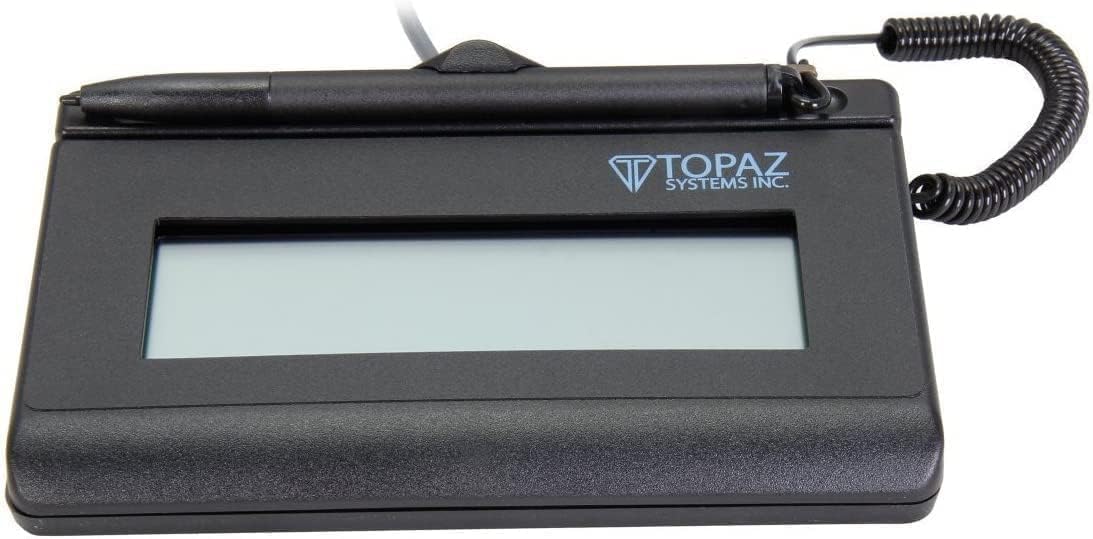
The Topaz T-S460-HSB-R is a USB electronic signature capture pad positioned as a cost-efficient business device. Its 4.3 rating is among the strongest customer-feedback results in the list. The pad displays the signature on the computer screen, giving users a visual confirmation through the laptop even though the device itself has a non-backlit screen.
We may earn a commission when you buy through this link, at no additional cost to you.
The specification list is concise, emphasizing the USB interface, high-quality capture techniques, and cost efficiency. Those features suggest a device intended for dependable document capture rather than a general creative experience. A wired USB connection can also reduce wireless pairing complications in a fixed office, reception area, or shared workstation.
The obvious drawback is the absence of backlighting. In a dim room, the screen may be less visible than a backlit alternative, although the computer-side display still provides a way to view the signature. The supplied information also does not detail pen technology, active dimensions, encryption, or operating-system compatibility, so buyers should request complete technical documentation rather than assume those features are present.
The T-S460-HSB-R is best for a business laptop workflow that prioritizes a focused capture device, straightforward USB connectivity, and a 4.3 customer rating. It is a practical alternative to more complex color-LCD systems. Users working in low-light conditions or needing a fully documented SDK and software bundle may prefer a model with more explicitly stated features.
Displaying the captured signature on the computer provides immediate confirmation without requiring a backlit pad display. This is useful for standard laptop-based signing procedures and employee onboarding workflows.
A wired connection suits permanent desks and shared workstations where a consistent device relationship is desirable. It also removes the need to manage wireless pairing for routine signing sessions.
We may earn a commission when you buy through this link, at no additional cost to you.
The Wacom Intuos Small is a wired graphics tablet with a battery-free EMR pen, and its 4.6 rating makes it one of the most well-regarded products in this guide. It is not a dedicated legal signature pad, but it can serve a laptop user who wants a natural pen experience for signing, markup, drawing, photo editing, and video work within supported software.
We may earn a commission when you buy through this link, at no additional cost to you.
Wacom EMR is the central technology. The pen responds without a battery and is designed to feel like pen on paper, providing a familiar experience for handwriting. Because the tablet works with software programs for drawing, painting, photo and video editing, and document markup, it offers far more flexibility than a specialized signature device tied to one application.
The main compromise is the absence of an LCD and dedicated signature-capture workflow. A signer looking at the laptop can still see the stylus mark in the active application, but there is no built-in display showing a signature target, and the supplied information does not identify encryption, timestamp, or legally binding capture features. The wired connection is reliable, though it reduces freedom compared with wireless alternatives.
For a budget-conscious laptop user who wants a capable general-purpose tablet, the Intuos Small offers an excellent balance of customer feedback, pen quality, and creative flexibility. It works well for personal signatures, forms, annotations, and light creative work. For regulated or customer-facing signature processes, a dedicated display pad with documented security and integration features is the better category match.
The battery-free EMR pen provides precise, familiar pen input without charging. That makes the tablet practical for repeated form completion, document annotation, and handwritten notes on a laptop.
Support for drawing, painting, photo editing, video editing, and design programs turns the tablet into more than a signature accessory. Included software and online training make it approachable for first-time tablet users.
We may earn a commission when you buy through this link, at no additional cost to you.
The renewed Topaz SigLite T-LBK460-HSB-R is a 1-by-5-inch backlit LCD signature pad with a USB connection. Its 4.9 rating is the highest among all ten products, making it a compelling choice when customer feedback is a major factor. The third-generation touch-screen signing surface and high-quality biometric and forensic capture position it as a specialized professional device.
We may earn a commission when you buy through this link, at no additional cost to you.
The LCD is customizable, allowing the display to serve as more than a passive signing area. Its backlight can improve visibility in environments where a non-backlit reflective display would be difficult to read. A small size and low weight also make the device comparatively portable for mobile signing kits or occasional remote appointments.
There are two qualifications. This is a renewed product, so buyers should inspect the seller's condition description, warranty terms, and return policy. The documented printer output is monochrome, which may be restrictive for workflows that print color documents from the device. As with the other specialized signature pads, exact software integration and security configuration should be confirmed for the intended application.
The T-LBK460 is a strong premium recommendation for professional users who value a backlit signing surface, compact construction, and documented forensic capture. It is particularly relevant to remote or mobile signing, client intake, and high-trust workflows. Buyers prioritizing the highest customer rating will find it stands apart, while those seeking the simplest setup may prefer a more general graphics tablet.
High-quality biometric and forensic capture is designed for settings where signature authenticity and traceability matter. The LCD can also present contextual information, prompts, or soft-key choices as part of the signing process.
The compact 1-by-5-inch footprint and low weight support transport between work locations. Backlighting makes the display easier to use than a non-backlit alternative, particularly in variable lighting conditions.
We may earn a commission when you buy through this link, at no additional cost to you.
The Topaz SigLite three-pack bundles three T-S460-HSB-R-style 1-by-5-inch USB signature pads for business use. Its 4.3 rating provides solid customer feedback, and the multi-unit format is designed for organizations that want several dedicated signing stations. The modern, ambidextrous style and PC compatibility support a professional office deployment.
We may earn a commission when you buy through this link, at no additional cost to you.
Buying three matching units can simplify training, replacement planning, and workstation setup. Each device uses a wired USB connection, which can be useful where signing stations remain in fixed locations. The compact signing format is appropriate for counters, desks, and other spaces where a full pen display would be unnecessary.
The principal drawback is that the listing provides much less technical detail than the individual Topaz product. It does not explicitly repeat the high-quality capture claims, backlight configuration, or other detailed features that appear in related model information, so buyers should confirm the exact contents and specifications with the seller. A three-pack is also unnecessary for a single home laptop user or occasional signer.
This package is best for a company deploying signing hardware across multiple employees, departments, or service counters. It offers a consistent way to equip several Windows-based PCs with dedicated signature devices. For one user, a single-pad option will generally be more appropriate; for a business rollout, the matching units and shared form factor are the main advantages.
Three matching pads give a business a straightforward way to establish identical signing stations. The common design also reduces the need to train employees on several different models.
USB connectivity can provide a dependable link to a PC in a reception area, back office, or dedicated signing desk. The ambidextrous format makes the compact units adaptable to different users.
We may earn a commission when you buy through this link, at no additional cost to you.
The right signature pad depends on whether you need a dedicated secure capture device or a flexible pen tablet, as well as the documents, operating system, display environment, and level of software integration your workflow requires.
A dedicated signature pad places a signing surface in front of the signer and may include specialized capture software, timestamps, document tools, or an SDK. These devices are better when signatures are part of a repeatable business procedure, a customer-facing counter process, or a workflow with audit requirements. A general graphics tablet is often more appropriate for a home office, occasional signatures, creative work, note-taking, and annotation, provided that formal electronic-signature security is not essential.
Check the operating-system statement before buying, especially when the laptop is a Mac. Several dedicated SMAJAYU products are explicitly limited to Windows 7, 8, 10, and 11 and do not support Apple computers. The ePaper SignPad says Mac users should contact the seller in advance, which is less definitive than explicit support. By contrast, the Huion H420 lists Windows 7 or later and Mac OS 10.8 or later. Wacom products also have broad creative application support, but users should still verify the exact application and driver requirements for their intended signing platform.
An LCD-equipped pad lets the signer see prompts, document context, and the written signature directly on the device. Backlighting helps in dim environments, while reflective monochrome displays can remain readable in bright conditions without a backlight. Non-backlit screens are generally easier to position in bright offices. If the tablet has no display, the laptop screen remains the only visual reference, which is fine for private signing but less effective when a customer must follow on-screen instructions. Match the screen size and active area to the expected document and signature dimensions.
Battery-free pens remove charging and pairing from the workflow. The HavaPen YZ04, ePaper SignPad, Wacom STU500, and Wacom Intuos Small all use or include battery-free pen technology according to their descriptions. Wacom EMR is specifically presented as a maintenance-free electronic-pen approach. A passive pen also reduces the chance of a signing session being interrupted by a depleted stylus. Buyers should nevertheless check replacement nib availability, included nibs, grip style, and whether the pen is comfortable for long documents.
For professional or regulated use, investigate capture resolution, signature forensic quality, encryption, certification, and audit trails rather than relying only on appearance. The Topaz SigLite T-LBK460 explicitly offers high-quality biometric and forensic capture, and the Wacom STU500 states that data encryption is available as an option. Dedicated SMAJAYU products use a certification process for signature encryption and safety. These claims vary by configuration, so request the relevant security documentation and confirm whether additional software or services are required.
A pad that captures attractive handwriting is not automatically compatible with the application in which the signature will be used. The SMAJAYU FP430S includes document signing, demo, and SDK options but is limited to its own branded toolchain. The ePaper SignPad supports PDF, Word, Excel, and PowerPoint and offers an enterprise SDK. The Wacom tablets are broadly compatible with creative and annotation programs. Before buying, identify whether the workflow needs a visible signature embedded in a document, a picture pasted into a form, or direct integration with a website or OA system.
A laptop user who signs in several locations should consider size, weight, connection style, and setup time. The Huion H420 is only 7 millimeters thick and weighs 165 grams, while the Topaz SigLite T-LBK460 is described as small and lightweight. Fixed office counters may benefit more from wired USB devices because the relationship with the host computer remains consistent. If several employees will use the same device, prioritize a durable surface, easy cleaning, comfortable pen handling, and a display that is easy for different users to read.
Ratings can provide a useful early warning, but they should be considered alongside documentation and support. The Topaz SigLite T-LBK460 has a 4.9 rating, the Wacom Intuos Small has a 4.6, and the Huion H420 has a 4.1. The lower-rated dedicated units may still fit a precise business workflow, but their software ecosystems deserve closer inspection. Look for a manual, operation guide, downloadable signer utility, responsive vendor support, and clear compatibility terms, especially when the pad will support a formal business process.
Begin by confirming that the laptop operating system is supported and installing the correct driver or signature utility before attaching the pad. For devices that require a first-use certification, complete that process before opening an important document. Connect the supplied stylus, test the pen response, check the active area, and adjust the display, pointer, pressure, or shortcut settings through the relevant application or control panel.
To sign a document, open the target file, place the signature field where required, and use the included pen at a comfortable angle. Avoid pressing so hard that the nib catches or wears quickly. With LCD models, confirm the signature is visible both on the pad and within the document before saving. If the application offers a timestamp, printed name, encryption, or certification option, review those settings before final submission and save the completed document in the expected format.
For care, keep the screen or signing surface free of grit, liquids, and abrasive materials, and clean it with a soft, lint-free cloth. Store the pen in its clip or case, replace damaged nibs rather than forcing a worn tip, and avoid leaving the tablet stacked beneath heavy objects. For shared equipment, sanitize the pen and surface according to workplace guidance, inspect cables for damage, and preserve the original packaging and documentation in case a support request or return is necessary.
Only if its operating system and signing software match the pad's requirements. Several dedicated SMAJAYU models support Windows 7, 8, 10, and 11 but not Apple computers, while the Huion H420 lists both Windows and Mac support. Some devices also require a particular signer utility or SDK, so check both hardware and application compatibility before buying.
An LCD is helpful when a signer needs to see a document prompt, signing position, or signature on the device itself. It is especially useful at public counters and during customer-facing appointments. For private laptop signing, a graphics tablet without a display can be sufficient, provided you can see the active application and do not require specialized electronic-signature capture features.
Yes, for basic and occasional signing. The Wacom Intuos Small and Huion H420 can support handwritten input, annotation, and document markup in suitable software. Dedicated signature pads are more appropriate when you need visible signature feedback, timestamped records, encryption, forensic capture, SDK integration, or a fixed business signing procedure.
A signature pad is optimized for capturing and placing signatures, often with a smaller display and dedicated utilities. A pen display is a broader graphics monitor that usually provides a larger, color workspace for drawing, editing, and design. A compact graphics tablet without a screen falls between these categories and can handle basic handwriting but does not show a document directly on the signing surface.
A battery-free stylus is convenient for frequent use because it never needs charging and cannot stop working because of a depleted battery. Several products in this guide use passive or battery-free pens. If a pad uses a rechargeable stylus, include charging time and spare-battery planning in the setup, but the passive designs provide fewer maintenance interruptions.
Some can, but integration is product-specific. The SMAJAYU FP430S offers a 430S SDK for programmable platforms, and the ePaper SignPad provides an enterprise SDK for OA system integration. The Wacom and Huion products are better suited to annotation and application-level input. Contact the vendor with the target platform and document workflow before purchasing.
Disconnect the pad from the laptop, switch it off, and use a soft, lint-free cloth lightly dampened with an appropriate cleaner if the manufacturer permits it. Do not spray liquid directly onto the screen, avoid abrasive pads, and keep moisture away from openings and edges. Use a separate approved method for the pen and follow any specific cleaning guidance in the product manual.
A backlit display is usually easier to read in dim rooms and in settings where screen brightness can be adjusted. A reflective non-backlit display can provide strong contrast in bright office lighting and avoids backlight-related wear considerations. Choose based on the primary signing location, and consider glare, viewing angles, and how the device will be positioned on the desk.
The Wacom Intuos Small is the strongest budget-oriented choice for a laptop user who wants a capable pen tablet for signing, markup, and creative work. The Wacom STU500 stands out as a dedicated editor's choice with a reflective display, durable surface, and Wacom EMR pen, while the renewed Topaz SigLite T-LBK460 is the premium option for buyers prioritizing forensic capture, backlighting, portability, and excellent customer feedback.
Prioritize operating-system support, the exact document application, and the type of signature record you need before focusing on screen size or pen features. Formal business processes may require a dedicated SDK, encryption, certification, timestamp, or audit capability, whereas private users can often accomplish basic signing with a compact graphics tablet. For shared counters, visibility and durability should carry more weight than creative functionality.
Finally, check the current product listing, software requirements, warranty terms, and customer feedback before ordering, because availability and pricing can change. For a renewed device, review the condition and return policy especially carefully. The right signature pad is the one that works reliably with your laptop, fits the signing environment, and creates a clear record without making the workflow unnecessarily complicated.

